

Send payment reminders for unpaid WooCommerce bank transfers
Set a reminder before cancellation, protect excluded customers and check the flow with a test order.
A bank-transfer order can stay on hold because the customer forgot to pay. This tutorial shows how to send a reminder before its deadline with Unpaid Transfer Guard Pro, then check the rule before applying it to a client’s store.
WooCommerce bank transfers do not automatically confirm that funds arrived. The merchant checks the bank account and updates the order after receiving payment. The reminder follows the order state recorded in WooCommerce; it does not access the bank.
What you need
- WooCommerce, free Unpaid Transfer Guard and Unpaid Transfer Guard Pro, active with an activated Pro license. These steps use Free 3.0.0 and Pro 1.0.3.
- Permission to manage WooCommerce, working email delivery and scheduled tasks that run.
- A test store and an email address you control to check the reminder.
The Pro installation guide covers download and activation. Free manages cancellation; Pro adds reminders, payment-method deadlines and exclusions.
1. Choose the deadline and reminder time
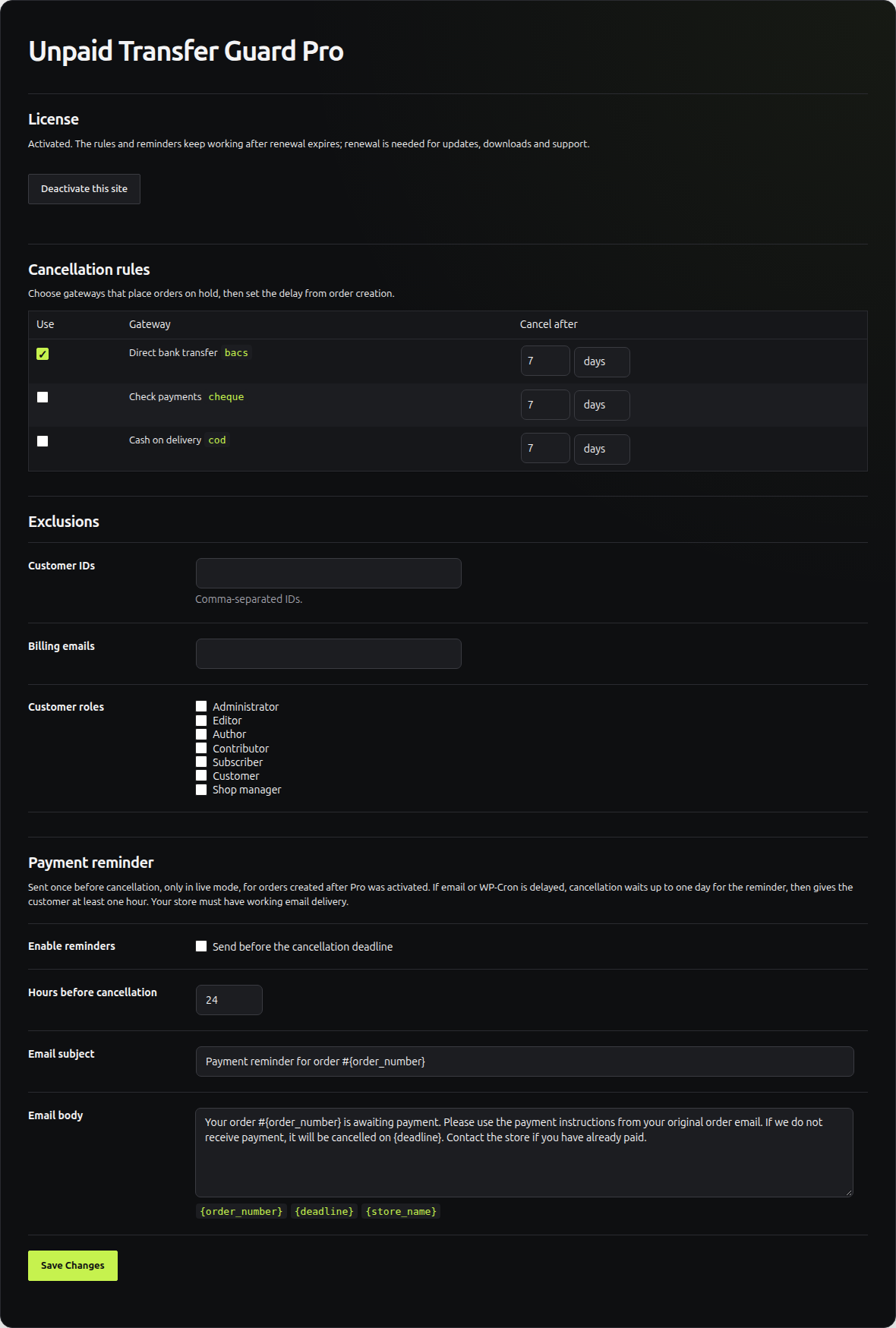
Open WooCommerce → Transfer Guard Pro. Under Cancellation rules, enable bank transfers and choose a delay that fits the store. This example uses 7 days after order creation, with a reminder 24 hours before cancellation.
| Example event | Date |
|---|---|
| Order created | 1 October at 10 am |
| Reminder scheduled | 7 October at 10 am |
| Cancellation deadline | 8 October at 10 am |
Scheduled tasks can run later than their planned time. The reminder’s lead time must be shorter than the cancellation delay.
Expected result: the merchant knows how long the customer has to pay and when the reminder is scheduled. Use the same time zone when reviewing those dates in WordPress.
2. Protect orders that must stay open
Under Exclusions, add customer IDs, billing email addresses or roles with separately agreed payment terms. Save the settings. In the free plugin’s settings, use dry-run mode to preview affected orders.
With Free 3.0.0, the Pro payment-method delay takes priority over amount-based rules. A manual extension from WooCommerce → Bank transfers keeps the later deadline. Pro 1.0.3 uses that effective deadline for the reminder.
Expected result: excluded orders stay protected and extensions appear in the deadlines you review. Dry-run mode does not send reminders; they require live mode.
3. Write a reminder with a clear next step
Enable reminders and set their lead time to 24 hours. The subject can be “Payment reminder for order {order_number}”. In the body, include the order number, deadline and how to contact the store if the transfer was already sent.
You can start with this text:
Order {order_number} at {store_name} is awaiting payment by bank transfer. Its deadline is {deadline}. If you have already sent the transfer, contact us with its reference so we can check it.
Keep {order_number}, {deadline} and {store_name} where useful. Save the text in the site’s language: custom wording stays as written and is not automatically translated for each customer.
Expected result: the message explains what is missing, gives a date and covers a payment already sent.
4. Check a new order on the test store
On the test store, shorten the cancellation delay to 2 hours and the reminder lead time to 1 hour. After reviewing the preview, confirm live mode in the free plugin. Create a new bank-transfer order with your test email address and leave it on hold.
Reminders only cover orders created after Pro activation, so an old order is unsuitable for this check. At the scheduled time, check WooCommerce → Status → Scheduled Actions, then the inbox and order notes. WooCommerce system tools help you monitor background tasks.
Expected result: the email arrives with the variables replaced and an order note records the reminder. It is sent once. Extending the deadline after it was sent does not send another reminder.
5. Restore the agreed delays before going live
Restore 7 days / 24 hours, or the values agreed with the merchant. Review exclusions and the preview on the target store before enabling real cancellations. Agree who will check incoming transfers and update orders.
If a task or email is delayed, cancellation waits for the reminder for up to one day. After a reminder is sent, the customer gets at least one hour before cancellation. Persistent email failure does not prevent cancellation indefinitely.
Expected result: the store’s rule matches the agreed payment terms, with a person checking received payments.
If no reminder arrives
| Situation | Check |
|---|---|
| The order is old | Create an order after Pro activation. |
| The store is in dry-run mode | Reminders require live mode. Run the check on the test store. |
| The order is excluded | Review exclusions and its payment method. |
| The date has changed | Check any extension and the effective deadline. |
| An order note records sending, but no email arrives | Check the address, spam folder and WordPress email delivery. |
| Scheduled tasks stay pending | Check task execution with the host; do not delete the queue to force a result. |
For orders that remain unpaid, read the tutorial on bank transfers blocking stock. Managing several stores? Unpaid Transfer Guard Pro plans list the covered store count; the installation guide helps you repeat the configuration on each store.
