

Install Unpaid Transfer Guard Pro
Install the Pro ZIP, activate your license and configure cancellation delays, exclusions and payment reminders in WooCommerce.
This guide takes you from download to a checked first configuration of Unpaid Transfer Guard Pro. Pro extends the free plugin: keep both plugins active.
Prerequisites
- A WordPress administrator account to install plugins, then an account allowed to manage WooCommerce for configuration.
- WordPress 6.5 or later and PHP 7.4 or later. WooCommerce and your other plugins must also support your installation.
- WooCommerce and JeyTech Unpaid Transfer Guard for WooCommerce 1.1.0 or later, installed and active. The free version currently tested is 2.0.0.
- A Pro license for this product, with an available store slot.
- For reminders: working email delivery and WordPress/WooCommerce scheduled tasks.
1. Download the right ZIP
After a confirmed payment, open the JeyTech email and download the Unpaid Transfer Guard Pro ZIP. Keep the file zipped for installation. Your license key is in the same email.
The download link lasts seven days. If it has expired, use My subscription to request another link with your purchase email address. Downloads require an active subscription.
Expected result: you have jeytech-unpaid-transfer-guard-pro-1.0.1.zip and your license key.
2. Install and activate the plugin
In WordPress, open Plugins → Add New Plugin → Upload Plugin, select the Pro ZIP, install it and activate it. Activate WooCommerce and the free plugin too.
Expected result: all three plugins are active and WooCommerce → Transfer Guard Pro is available. Activating the plugin and activating the license are separate steps.
3. Activate the store license
Open WooCommerce → Transfer Guard Pro, paste your key into License key, then click Activate license. WordPress contacts jeytech.app to register this store.
Expected result: License activated appears and the Pro settings become available. WordPress stores an activation token; your purchase key is not stored in the site's options.
To move a license, click Deactivate this site on the old store before activating the new one. Deactivation stops Pro features on the old store. Your plan determines the number of allowed stores.
4. Configure rules and exclusions
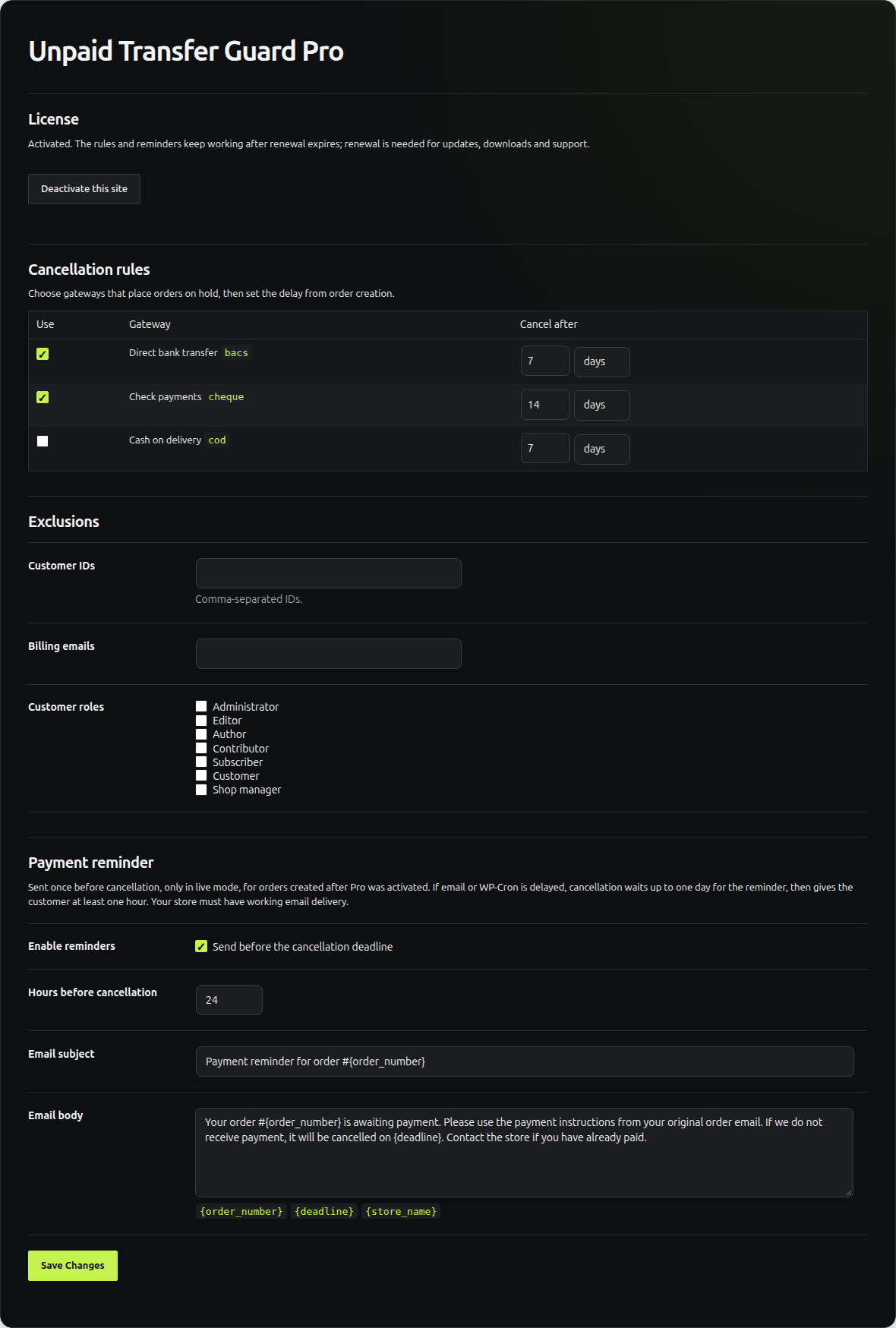
Under Cancellation rules, enable payment methods that place orders on hold, then set a delay in days or hours. The delay starts when the order is created. The standard setting applies seven days to bank transfers, unless the free plugin already uses a different delay.
Under Exclusions, enter customer IDs, billing email addresses or roles that should stay outside automatic cancellation. Separate IDs and addresses with commas.
Save, then open the free plugin's settings to preview matching orders in dry-run mode. The free plugin asks you to confirm before switching to real cancellations.
Expected result: the saved delays are correct and the preview keeps excluded orders. Check that list before confirming live mode.
5. Configure the payment reminder
Enable reminders and choose how many hours before cancellation they should be sent. This must be shorter than the payment method's cancellation delay. Edit the email subject and body as needed, keeping {order_number}, {deadline} and {store_name} where useful.
A reminder is sent once, only in live mode and only for orders created after Pro activation. If email delivery or scheduled tasks are delayed, cancellation waits for the reminder for up to one day. After a reminder is sent, the customer gets at least one hour before cancellation.
Expected result: an eligible test order receives its reminder with the variables replaced, and an order note records it. Check this flow on a test store before enabling real cancellations.
6. Choose English or French
Pro 1.0.1 includes French fr_FR. The administration interface follows your WordPress profile language, or Settings → General → Site Language when the profile uses the site default.
Standard reminders follow the site language. Unchanged English templates saved by Pro 1.0.0 are localized automatically; custom text stays unchanged. There is no automatic language selection per customer. WordPress.org distributes the free plugin's translations separately.
Expected result: Pro settings use your chosen language and the reminder templates match your store.
7. Install updates
With an activated license and an active subscription, Pro updates appear under Dashboard → Updates or Plugins. Private update checks can cache their response for six hours, so a release may take time to appear.
Keep a current backup before updating. For a manual update, upload the new ZIP for the same product and accept the replacement offered by WordPress. Settings and activation are preserved.
After subscription expiry, already activated Pro features keep working. Updates, downloads and support require an active subscription.
Expected result: the plugin list shows the new version and your rules are preserved.
Common problems
| Situation | Check |
|---|---|
| The Pro menu is missing | Check WooCommerce, free plugin 1.1.0 or later and your account's permissions. |
| The key will not activate | Use the Unpaid Transfer Guard Pro key, check the subscription and the store's HTTPS access to jeytech.app. |
| The store limit is reached | Deactivate an old store before activating another. |
| No reminder is sent | Check live mode, orders created after activation, exclusions, the reminder delay and email delivery. Review WooCommerce scheduled actions. |
| No update appears | Check activation and subscription status, then allow for the six-hour cache. |
| French does not appear | Check Pro 1.0.1 or later and the profile or site language. |
Contact support
Use the contact form or email support@jeytech.app. Include the product, WordPress/WooCommerce/PHP and both plugin versions, the step you reached and the error message. Keep passwords and license keys out of public screenshots.
Use My subscription for invoices or renewal. The product page lists plans and their limits.
For common WordPress actions: install and update a plugin and set the site language.

