

Set checkout hours in WooCommerce
Keep your catalog open, accept new orders during working hours and add exceptions for holidays or shipping methods.
You accept orders during working hours but want customers to browse products and prepare their cart at any time. This tutorial sets a week with a lunch break in Checkout Hours, then adds a holiday and different hours for collection or delivery with Pro.
What you need
- WordPress 6.6+, WooCommerce 9.6+, PHP 7.4+ and permission to manage WooCommerce.
- JeyTech Checkout Hours free on WordPress.org, version 1.0.0 for these steps.
- A test store to check orders before applying the rules in production.
- For exceptional dates and shipping methods only: Checkout Hours Pro 1.0.0, with its license activated. The Pro installation guide covers ZIP installation and activation.
Free handles weekly hours, breaks and the outside-hours notice. Pro adds dates and separate weeks for shipping methods. Neither reserves collection slots, chooses delivery dates or schedules order fulfillment.
The screenshots below come from 1.0.0 test stores. Their settings illustrate the interface; enter the example hours on your own store. Pro includes French. Free’s French labels depend on its WordPress.org language pack, which still awaits community approval.
1. Install Free and choose the store timezone
Under Plugins → Add New Plugin, search for JeyTech Checkout Hours for WooCommerce, install it and activate it alongside WooCommerce.
Open Settings → General → Timezone. Choose a city such as Europe/Paris if the store follows daylight saving changes. A fixed offset such as UTC+1 does not automatically switch to summer time.
Open WooCommerce → Checkout Hours and check the timezone and current time in the preview. The plugin starts disabled: installing it does not close checkout.
Expected result: the menu is available and the preview uses the store’s time, not the customer’s phone time. No restriction applies until you save and enable the schedule.
2. Save a week with a lunch break
Under Weekly schedule, use two ranges for days with a break. + Add range adds another row to the same day.
| Day | First range | Second range |
|---|---|---|
| Monday to Friday | 09:00 to 12:00 | 14:00 to 18:00 |
| Saturday | 10:00 to 13:00 | None |
| Sunday | None | None |
Enter 24-hour HH:MM times. Leave a day’s rows without times to close it. Select Enable checkout hours, then click Save checkout hours. The preview reads the saved settings, not edits still in the form.
Starts are included and ends are excluded. In this example, an order is allowed at 09:00, but not at 12:00; orders resume at 14:00. Overlapping ranges cannot be saved. Invalid input keeps the previous configuration.
For overnight work, 22:00 to 02:00 continues into the next day. For a full day, use 00:00 to 24:00. Account for any overnight range arriving from the previous day when checking a day left blank.
Expected result: the saved week accepts orders in the chosen ranges, with a two-hour weekday break. Customers can still browse products and add to their cart outside those ranges.
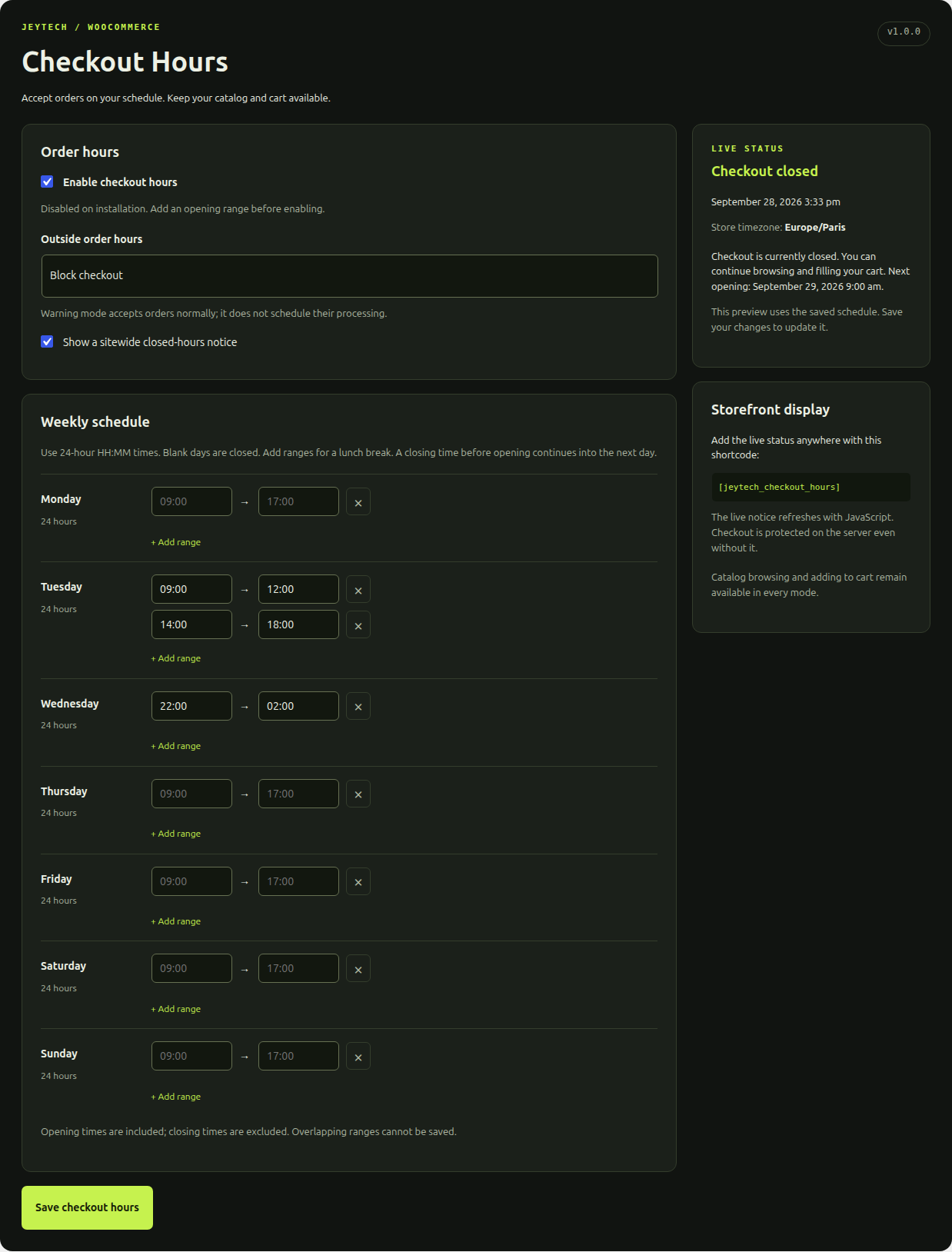
3. Choose blocking and tell customers what happens
Under Outside order hours, choose Block checkout to refuse new orders outside the schedule. Allow orders with a warning accepts orders normally and displays a warning. It does not postpone payment or fulfillment until the next day.
To display a closure notice across the site, enable Show a sitewide closed-hours notice and save. You can also insert [jeytech_checkout_hours] into a page using a Shortcode block. The sitewide banner requires a theme that supports wp_body_open.
Final validation runs on the server for both classic checkout and Checkout Blocks. JavaScript refreshes the notice from a noncached local status endpoint. A page opened before closure does not grant permission to order after it. If your CDN overrides caching, exclude this status endpoint so its no-store headers are respected.
Expected result: block mode refuses an outside-hours attempt while keeping the cart available. Payment for an already existing order remains possible.
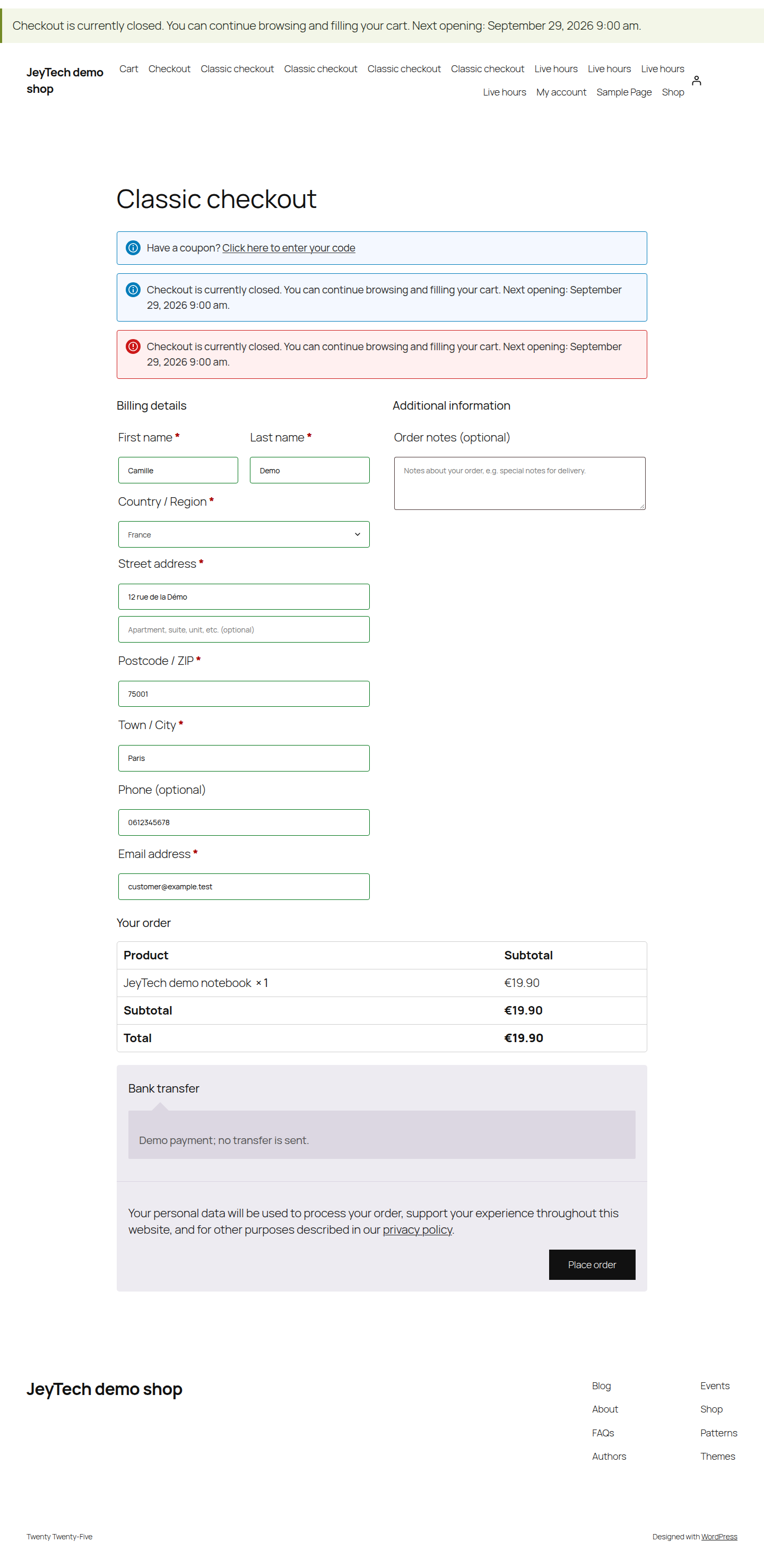
4. Add a holiday and shipping-method hours with Pro
This step is optional. Keep Free active and its schedule enabled. After installing Pro and activating its license, open WooCommerce → Checkout Hours Pro.
Under Calendar exceptions, add two dates:
| Date | Configuration |
|---|---|
| 25 December 2026 | Select Closed all day. |
| 31 December 2026 | Leave closure unchecked and enter 09:00-13:00 under Opening ranges. |
Click Save configuration. An exception replaces the entire local calendar day, including overnight hours arriving from the previous day. Dates are not recurring holidays: add next year’s dates yourself. Choose block mode to guarantee that all new orders are refused that day. In warning mode, global rules allow orders with a notice; a method governed by a closed Pro rule is still refused.
For separate shipping hours, create or identify enabled methods in your WooCommerce zones. For example, one Local pickup instance and one Flat rate instance renamed “Express delivery”. Express is a store label here, not a carrier integration.
Under Shipping method schedules, select each Zone / method / instance and enter its active weekdays:
| Example instance | Monday to Friday | Saturday | Sunday |
|---|---|---|---|
| Local pickup | 09:00-12:00, 14:00-19:00 |
10:00-13:00 |
Blank |
| Express delivery | 09:00-12:00, 14:00-16:00 |
10:00-13:00 |
Blank |
Save. A configured method’s week replaces Free’s week for that instance, so pickup can stay open until 19:00 in this example. A method without a rule inherits Free’s week. Global dates take priority over these weeks. Method windows stay strict even in global warning mode, and every shipping package in the cart must have a selection open at the same instant.
Expected result: outside a dated exception, express delivery closes at 16:00 and pickup remains available until 19:00. In block mode, no method bypasses the 25 December closure. On 31 December, the exceptional 09:00 to 13:00 range applies.
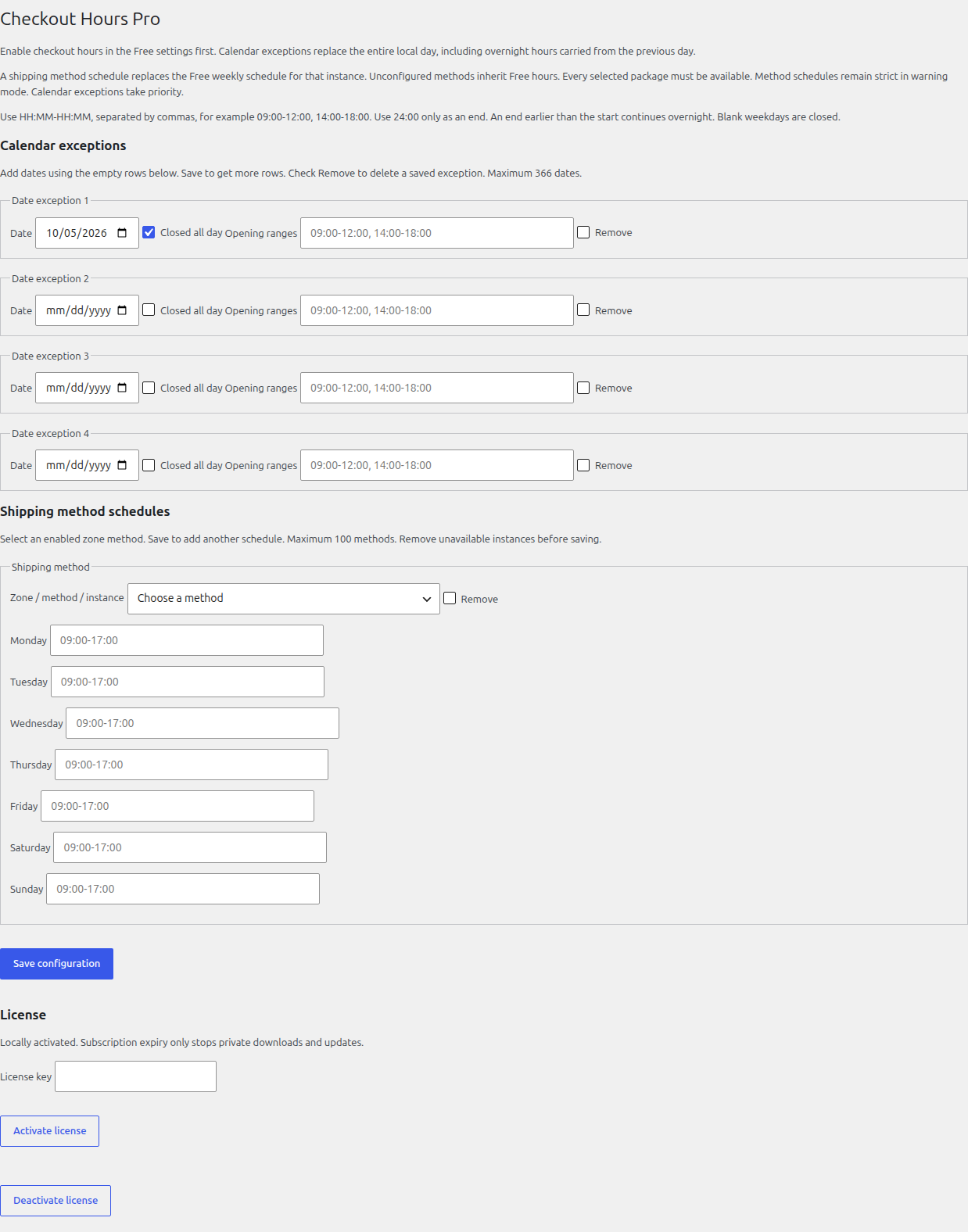
5. Check orders before going live
Use a test store and a test payment method. Do not send money to check the schedule. Repeat the applicable cases with classic checkout and Checkout Blocks.
| Test case | Expected result in block mode |
|---|---|
| A weekday at 09:00 | New order allowed. |
| The same day at 12:00 | New order refused during the break. |
| The same day at 14:00 | Orders allowed again. |
| Without Pro, the same day at 18:00 | New order refused. |
| With the Pro rules, express at 16:00 | This selection is closed; try pickup, which is still open. |
| With the Pro rules, pickup at 19:00 | This selection is closed. |
| With Pro, 25 December 2026 | New orders refused all day. |
| Page opened before closure, submitted afterwards | Final validation uses the submission time. |
Check that products remain visible, the cart is not emptied and payment for an existing order is not blocked. Repeat affected cases after changing the timezone or a shipping method. For multiple shipping packages, test each combination your store actually uses.
Expected result: new orders follow the saved schedule and chosen mode. Free and Pro do not close the catalog or schedule a delivery.
If the result does not match the schedule
| Situation | Check |
|---|---|
| Orders go through after closure | Schedule enabled, block rather than warning mode, correct timezone and no Pro rule opening that method. |
| Preview has not changed | Save the form; the preview reads saved settings. |
| A blank day seems open overnight | Check ranges arriving from the previous day. A closed Pro date replaces the entire day. |
| 25 December is not blocked | Correct date and year, Pro locally activated, Free enabled and block mode selected. |
| A method keeps the wrong hours | Correct zone instance, not just the same method type; remove rules for unavailable instances. |
| Notice shows an old status | JavaScript enabled and status endpoint excluded from CDN-forced caching; also test actual order validation. |
Start with free Checkout Hours or its JeyTech page. If you need dates and per-method hours, Checkout Hours Pro plans are €59 per year for 1 store, €149 for 5 and €299 for 25, with no order quota. The Pro installation guide covers licensing, updates and moving a store slot.
