

Install Order Transfer QR Pro
Activate the license, save structured RF references and add a locally generated payment QR to WP Overnight PDF invoices.
Order Transfer QR Pro extends JeyTech Order Transfer QR. The Free plugin is still under WordPress.org review. Pro sales open after Free publication and the final release checks. This guide describes the prepared version 1.0.0.
Pro saves an ISO 11649 RF payment reference on each eligible order. The confirmation, customer email and PDF use that same reference. The customer scans with an EPC / GiroCode banking app and confirms the transfer in their bank.
Prerequisites
- WordPress 6.6+, PHP 7.4+ with zlib, WooCommerce 9.6+ and JeyTech Order Transfer QR 1.0.0+. Keep WooCommerce and Free active.
- Administrator access for installation, then permission to manage WooCommerce for settings and licensing.
- An Order Transfer QR Pro license with a free store slot. Keys for other JeyTech products cannot activate this Pro.
- For PDF invoices: PDF Invoices & Packing Slips for WooCommerce by WP Overnight, enabled invoices, and a template using its standard
wpo_wcpdf_after_order_detailshook. The supplied Simple template in version 5.16.3 was tested. Other invoice plugins and templates without this hook are outside this integration.
1. Install and activate the license
Once sales open, the purchase email provides the key, both guides and jeytech-order-transfer-qr-pro-1.0.0.zip. Keep the ZIP zipped. Use Plugins → Add New Plugin → Upload Plugin, install and activate it alongside WooCommerce and Free.
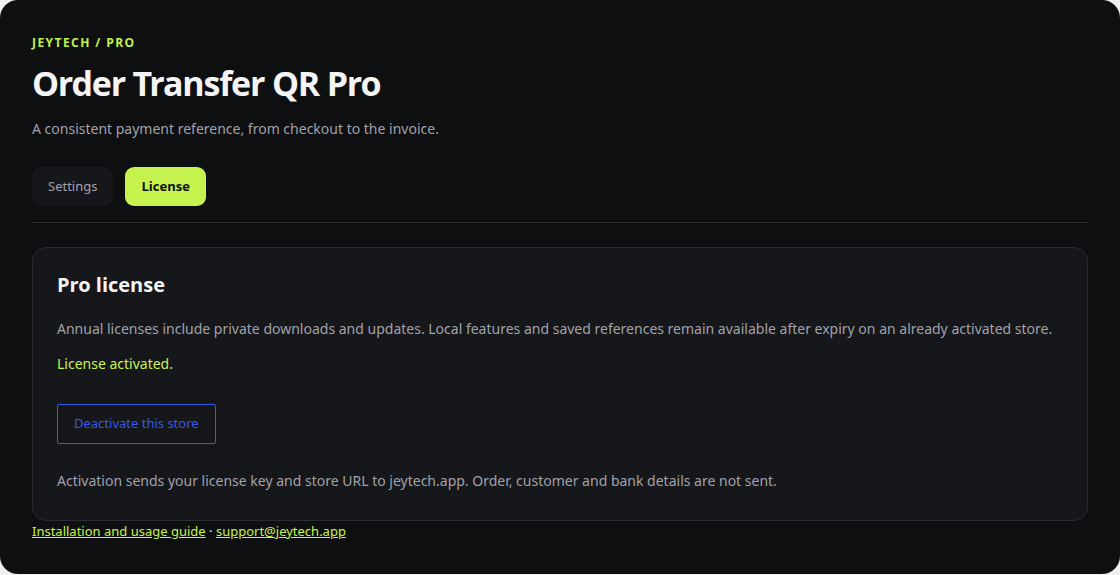
Open WooCommerce → Order Transfer QR Pro → License, enter the key and select Activate license. License activated should appear. Activation stores a token, rather than the purchase key, in WordPress.
Activation sends your key and store URL to jeytech.app. Private update checks use the activation ID and token. This add-on does not send order, customer or bank details to the license service.
Solo allows 1 store for €59/year, Studio 5 for €149/year, Agency 25 for €299/year. There is no order quota. Purchase download links last seven days; recover a fresh link with the purchase email under My subscription while your subscription is active.
2. Configure the Free bank account
In WooCommerce → Settings → Payments → Bank transfer, enable BACS and save a euro transfer account. In WooCommerce → Order Transfer QR, enable the Free instructions, select that account and enable the desired confirmation/email surfaces.
The account selection is explicit. If the displayed bank details change, select the updated account again in Free. Pro reuses Free's IBAN, BIC, amount and eligibility validation.
Expected result: a new unpaid BACS order in EUR, with status On hold, can display payment instructions. Other payment methods, currencies and order statuses receive no payment QR.
3. Enable structured RF references
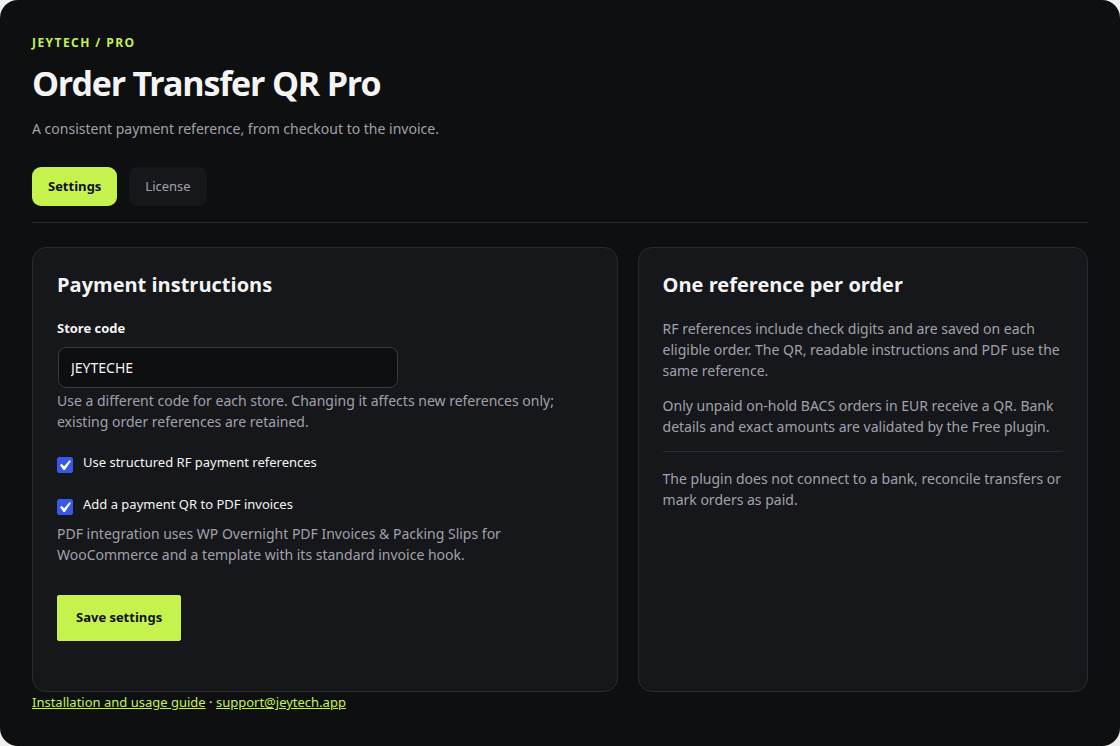
Open the Pro Settings tab. Both Pro options are off on a fresh installation. Choose a Store code of 1 to 8 letters or digits; letters are saved uppercase. Use a different code on each store, including cloned stores.
Check Use structured RF payment references and select Save settings. The code and an exact order ID form the reference body; RF adds two check digits. Pro does not depend on formatted order numbers.
Expected result: the next eligible order gets one saved RF reference, also visible in its administration billing details. The same value appears in the readable instructions and the QR's structured remittance field. The Free custom reference applies when RF is disabled.
Changing the store code affects references assigned afterward. Existing references stay unchanged. Turning RF off retains saved references; enabling it again reuses them. Language changes preserve references too.
4. Add the QR to PDF invoices
Install and configure WP Overnight, enable its invoices, then check Add a payment QR to PDF invoices in Pro and save.
Generate a fresh invoice for an eligible On hold BACS order in EUR. A Pay by bank transfer section should contain the QR, beneficiary, IBAN, exact euro amount, reference and BIC when present. The QR is embedded as local PNG bytes; the PDF renderer does not fetch a remote payment image.
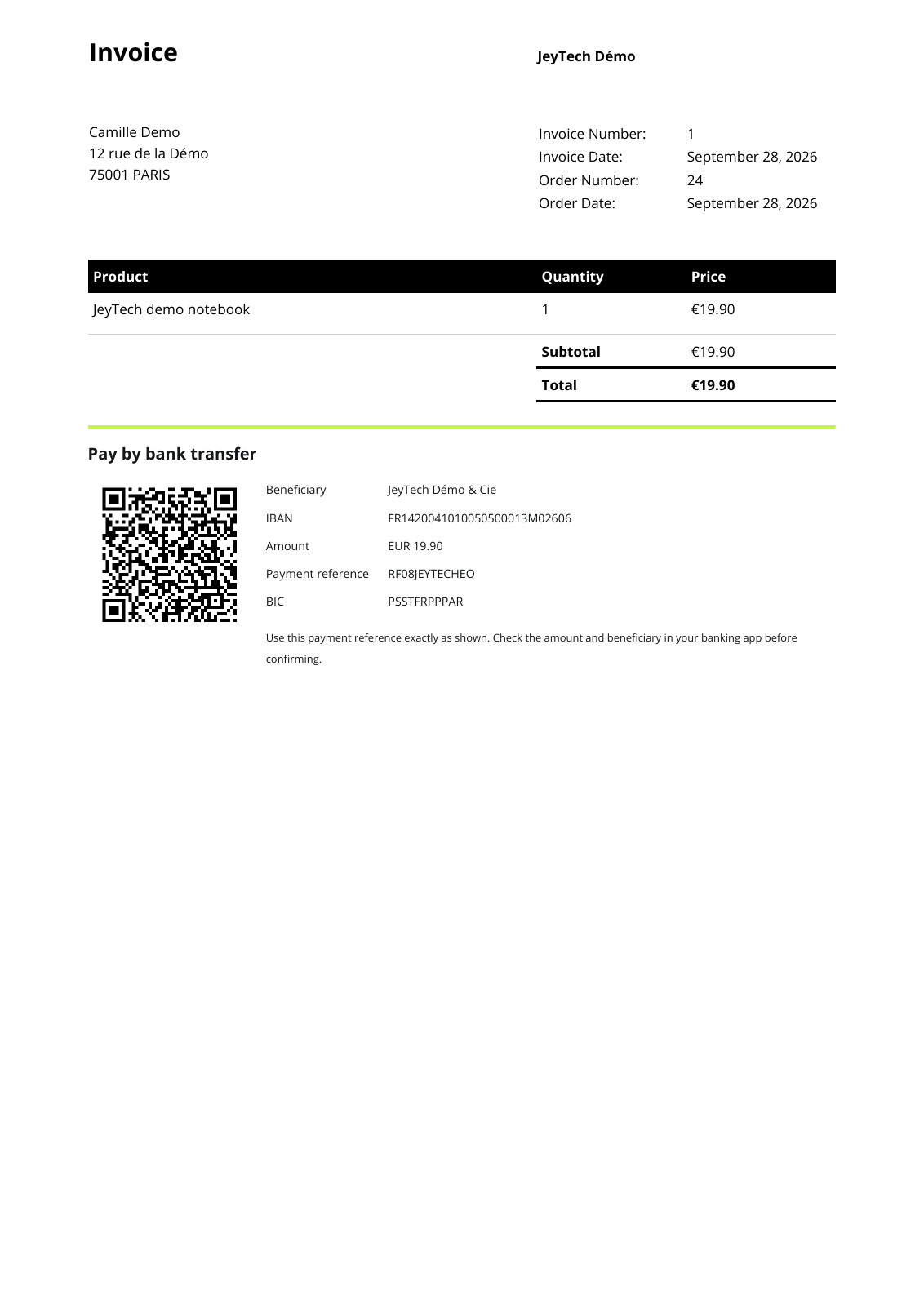
The PDF option also works with Free's reference when RF is off. Packing slips receive no payment section. A freshly generated invoice for a paid order omits the section. A PDF already downloaded or cached remains a static copy: it cannot be revoked by the plugin. Regenerate invoices after changing payment details and check WP Overnight's caching settings.
PDF labels belonging to Pro follow the active WordPress locale. WP Overnight's own invoice headings and fields use its language packs and settings.
5. Test the customer journey
Place one test order through classic checkout and one through Checkout Blocks using BACS. Check the confirmation, full WooCommerce On hold email and a freshly generated PDF. Their RF references and amounts must match.
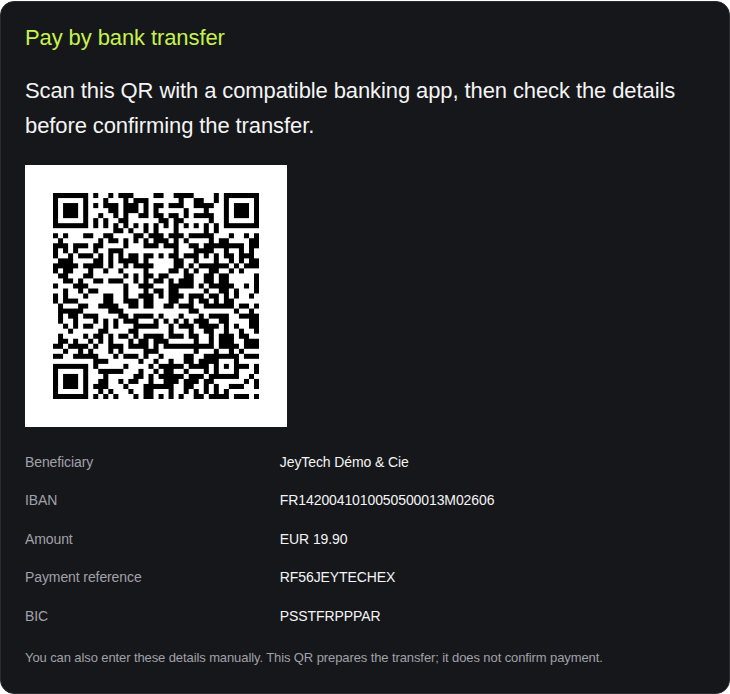
Use a banking app with EPC / GiroCode support to scan, inspect the details and cancel the test before sending money. Compatibility varies between banking apps. Customers can enter the readable details manually.
HTML emails use a signed image hosted on your store. It expires after 30 days and is denied if the order is paid or its payment details change. Plain-text emails retain readable details. Old Free emails keep using Free's endpoint. Copies already cached in mail clients cannot be revoked.
Pro does not connect to a bank, reconcile a transfer or mark the order as paid. Manage payment confirmation through your normal WooCommerce process. Native checkout handles payment processing, stock reduction and reservations.
6. Language, updates and moving a license
Version 1.0.0 bundles English and French (fr_FR), including a French fallback for Free. WordPress language packs take priority. The administration follows your profile language, or the site language with the default profile setting; storefront labels follow the site locale. Your account name, bank details, store code and references stay unchanged.
An activated license with an active subscription receives private updates under Plugins or Dashboard → Updates. Results may be cached for six hours. A manual update uses the newer ZIP for this same product and WordPress's replacement process. Saved settings, order references and activation are preserved.
Subscription expiry stops downloads, updates and new activations. Local features remain available on an already activated store. Renewal restores the subscription services.
To move a slot, choose Deactivate this store in Pro's License tab, then activate the purchase key on the new store. Successful deactivation restores Free instructions on the old store and denies its current Pro image links; saved references/settings remain. If the service is unavailable, local activation is retained so you can retry.
Common problems
| Situation | Check |
|---|---|
| Missing Pro menu | Both dependencies active, their versions, zlib and WooCommerce permissions |
| Key rejected | Correct product, subscription, available slot and HTTPS access to jeytech.app |
| No RF or QR | Local license activated, Free enabled, valid selected account, EUR / BACS / On hold and requested display enabled |
| No PDF section | PDF option, enabled WP Overnight invoice, supported template hook and a freshly generated document |
| Reference unchanged after editing code | Existing references are retained; test with a new eligible order |
| Broken email image | Thirty-day expiry, current order/bank data, license and access to your store's admin-post.php |
| French missing | Profile/site locale and the Pro ZIP's bundled catalogs; third-party labels use their own packs |
Use the contact form or support@jeytech.app. Include both plugin versions, WordPress/WooCommerce/PHP, the PDF plugin/template and the exact screen/error. Use My subscription for billing and download recovery. Keep keys and customer banking information out of public posts.

