

Install Checkout Hours Pro
Prepare dated closures, exceptional opening ranges and shipping-method schedules without closing your WooCommerce catalog or cart.
Checkout Hours Pro adds calendar exceptions and shipping-method schedules to Checkout Hours Free. Use it for a closed holiday, a shorter working day or different order hours for collection and delivery.
The private Pro build is locally tested. Sales remain closed while Free awaits WordPress.org review and publication. This guide prepares the installation. No purchase or customer delivery email is available yet. See the Pro page for planned prices.
Prerequisites
- WordPress 6.6+, PHP 7.4+, WooCommerce 9.6+ and JeyTech Checkout Hours 1.0.0+. Keep WooCommerce and Free active.
- Administrator access to install the ZIP, then permission to manage WooCommerce for settings and licensing.
- A license for Checkout Hours Pro, with a free store slot, when sales open. A key for another JeyTech product cannot activate this add-on.
- The correct Settings → General → Timezone. Choose a named region such as
Europe/Pariswhen you need daylight saving changes.
Free controls the normal week, the optional notice and global block or warning mode. Pro adds explicit dates and rules for individual enabled shipping method instances. It does not choose delivery dates, reserve collection slots or schedule order fulfillment.
1. Install the add-on and activate its license
When sales open and payment is confirmed, the purchase email will provide the key, both guides and jeytech-checkout-hours-pro-1.0.0.zip. Keep the ZIP zipped. Open Plugins → Add New Plugin → Upload Plugin, install and activate it alongside Free and WooCommerce.
Open WooCommerce → Checkout Hours Pro, enter the key in the license section and choose Activate license. Check that the store is locally activated before using Pro rules.
Activation sends the key and store URL to jeytech.app. Private update checks use the stored activation ID and token. Schedule and checkout evaluation stay on your store; they do not call the license service for each order.
Planned annual prices are €59 for 1 store, €149 for 5 stores and €299 for 25 stores, with no order quota. After launch, purchase download links will last seven days. Use My subscription to recover a fresh link with the purchase email while the subscription is active.
Expected result: the Pro menu is available, Free remains active and the license section confirms local activation.
2. Keep the normal week in Free
In WooCommerce → Checkout Hours, save the usual opening ranges and enable the schedule. Choose global block mode to refuse new orders outside those hours, or warning mode to accept them with a notice.
For example, open Monday to Friday from 09:00 to 17:00. Use separate ranges for a lunch break. Free also supports overnight ranges and 00:00 to 24:00 for a full day.
Free and Pro keep separate saved settings. Turning Pro off must not erase or replace the regular week. The catalog and cart stay available outside order hours. Existing-order payment routes remain outside the new-order guard.
Expected result: a new test order is accepted during the regular week. In block mode, one outside the ranges is refused before checkout processing.
3. Add calendar exceptions
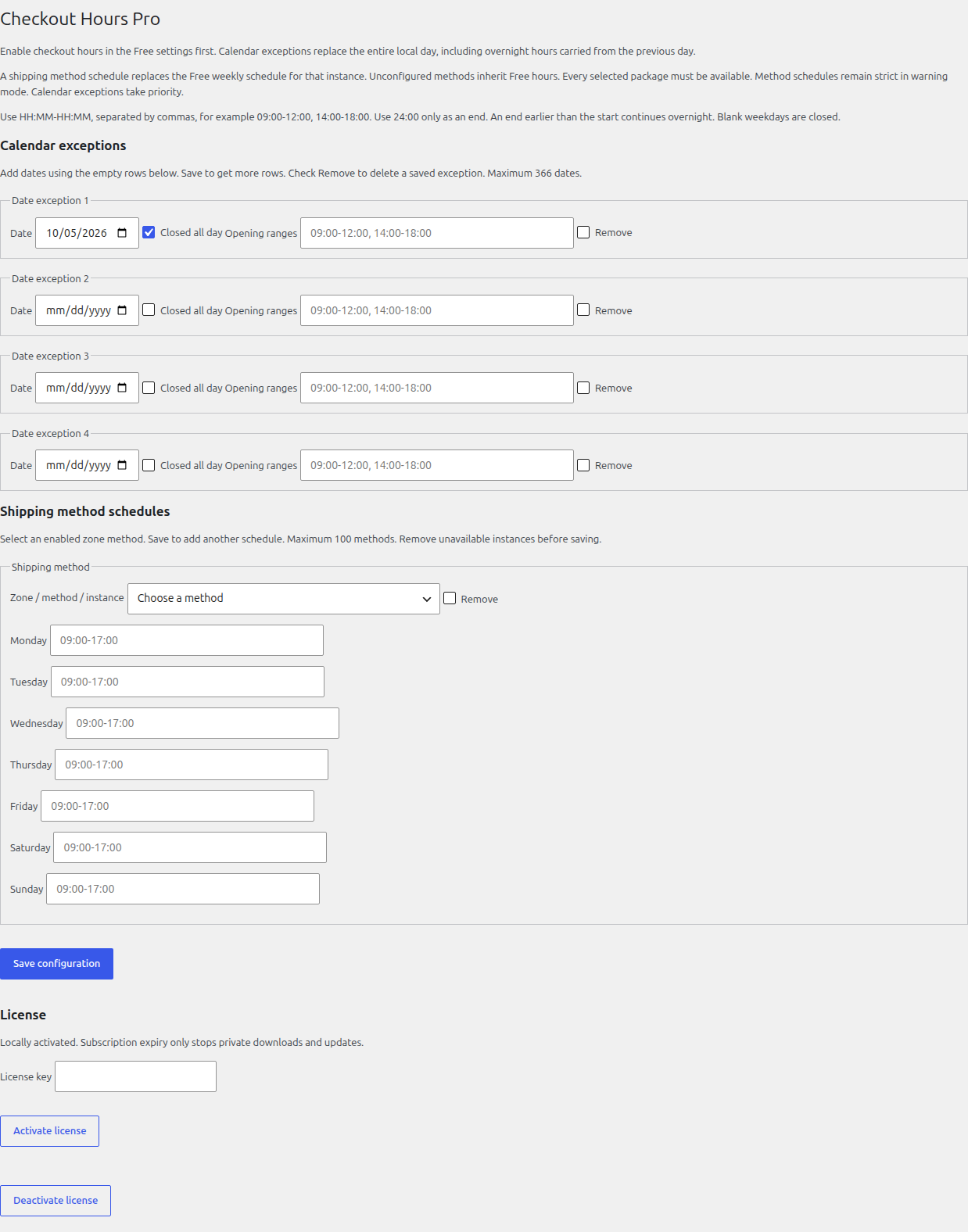
Under Calendar exceptions, choose the native Date field. Check Closed all day for a closure; otherwise enter Opening ranges such as 09:00-12:00, 14:00-18:00. Enter 00:00-24:00 for a full day or 22:00-02:00 overnight. Starts are included; ends are excluded.
The form has three empty date rows. Choose Save configuration to get more rows. Check Remove and save to delete an exception. No JSON or JavaScript is required. Date display follows your browser language; the saved identity is YYYY-MM-DD.
For example:
- 25 December 2026: closed all day.
- 31 December 2026: open from 09:00 to 13:00.
A dated exception replaces the whole actual local calendar day. A closed Monday cancels any incoming Sunday overnight range. A special opening uses the date's ranges, not the usual weekly ranges. Global dates take priority over method-specific weekly schedules.
Dates are explicit, not recurring holidays. Add next year's dates yourself. Remove an exception to return that day to the normal weekly rules.
Expected result: the selected closure refuses new orders in global block mode. A special opening accepts them only inside its saved ranges. An invalid save leaves the previous configuration unchanged.
4. Set hours for shipping methods
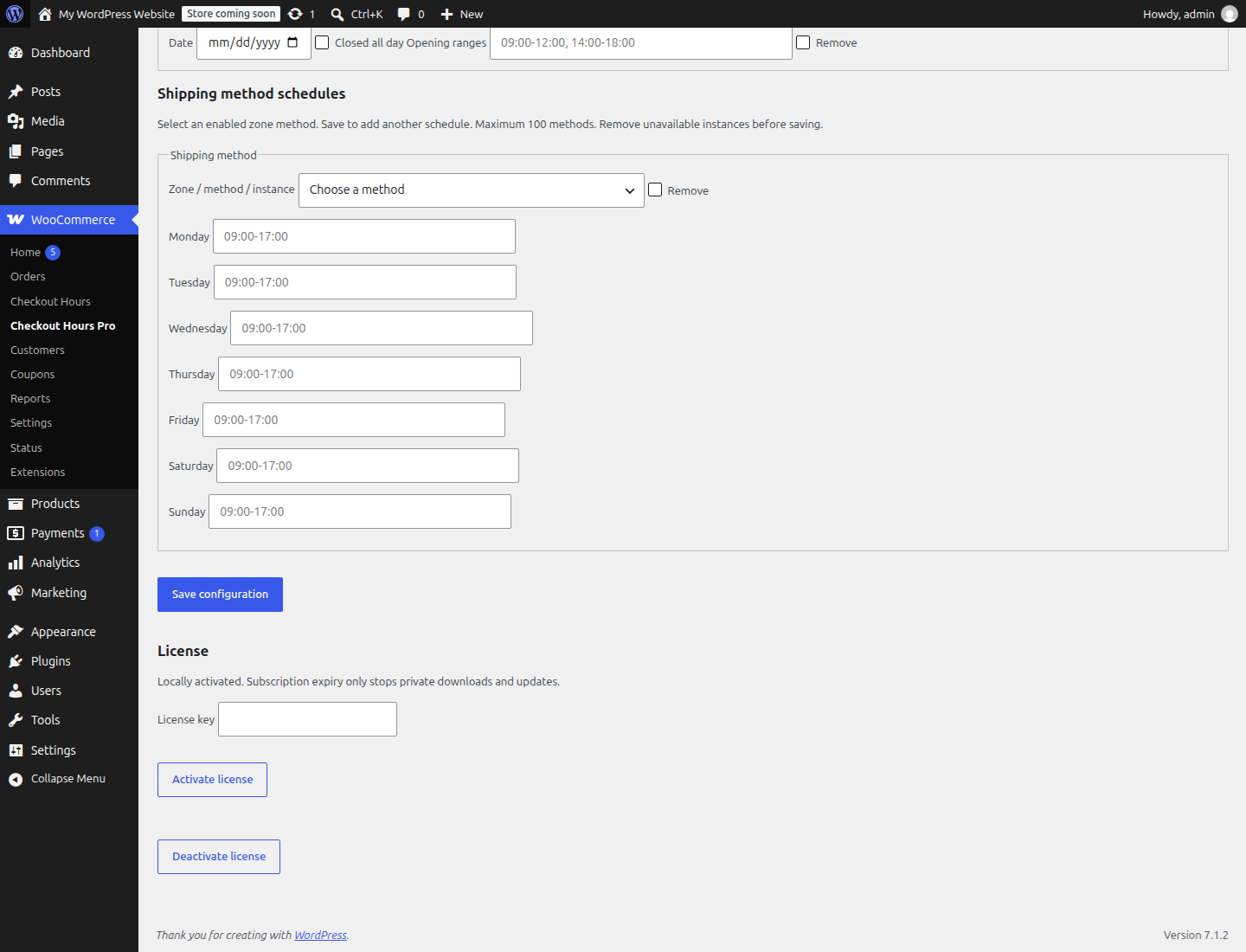
Under Shipping method schedules, use Zone / method / instance to choose an actual enabled WooCommerce shipping method. Set the seven named weekdays and choose Save configuration to add another method row. A blank weekday closes that method. Check Remove to delete a rule; remove unavailable saved instances before saving.
Select the actual enabled method instance from your WooCommerce shipping zones. Two flat-rate methods in different zones are different instances; a rule for one does not apply to the other. Give methods clear WooCommerce names so customers can distinguish them.
Add the seven-day ranges for the instances that need their own hours. For example, keep collection open until 19:00, but accept an express method only until 14:00. A configured method replaces the ordinary Free week for that instance. Unconfigured methods inherit the Free week. Global dated exceptions take priority over all these weeks.
Method windows are strict, even in Free's global warning mode. A customer must choose an allowed method. If a cart has several shipping packages, every selected package must be open at the same instant. This still does not select a delivery date or reserve a collection slot.
Expected result: a closed or forged method selection cannot complete a new order. An unrestricted alternative remains usable when the global rules allow it. Recheck rules after deleting, disabling or replacing a shipping instance.
5. Test the customer journey
Use a test payment method. Do not send money to verify opening hours.
- Try a new classic-checkout order inside and outside the global hours.
- Repeat with Checkout Blocks.
- Test a dated closure and a dated opening outside the ordinary week.
- Open a cart before a method closes, then try submitting after closure.
- Try an allowed alternative and, when relevant, a multi-package cart.
- Switch the admin/site language between English and French. Saved dates, shipping identities and Free settings should stay unchanged.
The final decision runs on the server. A cached page, missing JavaScript or a cart opened earlier does not grant permission to submit a closed selection. The notice is information, not a substitute for checkout validation. Its next-opening search covers 375 local days. No hint means no shared opening was found within that horizon, not permission to order.
Expected result: valid open orders use native WooCommerce processing. Refused new orders do not trigger payment processing. Pro does not confirm payment, alter order status or manage stock outside WooCommerce's normal checkout.
6. Language, updates and moving a license
Pro includes English and French (fr_FR). The administration follows your profile language, or the site language with the default profile setting. Free uses native WordPress language packs; its public French pack still depends on community validation.
An activated store with an active subscription will receive private updates through WordPress. A manual update uses the newer ZIP for this same product and WordPress's replacement process. Check dates and method rules after updating; do not upload a ZIP for another JeyTech Pro.
Subscription expiry stops downloads, updates and new activations. Local rules continue on an already activated store. Renewal restores subscription services.
To move a store slot, choose Deactivate license in Pro, wait for the successful remote release, then activate the purchase key on the new store. If the service is unavailable, activation stays local and the slot is not claimed as released. Retry before moving. Free behavior returns on the old store without deleting the Pro configuration or regular Free week. Do not assume that cloning WordPress transfers a licensed slot.
Expected result: an update preserves configuration. Explicit local deactivation restores Free rules, rather than deleting schedules.
Common problems
| Situation | Check |
|---|---|
| No purchase button | Sales await Free approval and publication. No payment is available yet. |
| Missing Pro menu | WooCommerce and Free active, supported versions and WooCommerce permissions |
| Key rejected | Correct Pro product, active subscription, available store slot and HTTPS access to jeytech.app |
| Exception has no effect | Local license activation, Free schedule enabled, correct date and WordPress timezone |
| Overnight unexpectedly ends | An explicit next-day exception replaces the whole day, including incoming overnight hours |
| Shipping selection refused | Correct enabled instance, applicable dated or weekly rule, and every selected package open |
| Large form rejected | Up to 366 dates in 2000–2099, 100 method rules and 12 ranges per day; increase PHP max_input_vars if the complete form is truncated. Previous settings are retained. |
| Catalog still open | Expected behavior. Rules restrict new orders, not browsing or filling the cart. |
| Free French labels missing | Its native language pack is separate from Pro's bundled French. |
Use the contact form or support@jeytech.app. Include both plugin versions, WordPress/WooCommerce/PHP, timezone, date and time, checkout type, and shipping zone/instance. Use My subscription for billing and download recovery after launch. Keep license keys and customer details out of public posts.
