

Send replenishment reminders for consumables in WooCommerce
Set consumption days, account for purchased quantity and send an optional WooCommerce reorder reminder email with consent and an unsubscribe link.
A WooCommerce replenishment reminder asks a customer whether they need another bag of coffee, pet food or a replacement filter. JeyTech Replenishment Reminder Free estimates the date from consumption days and purchased quantity, then sends one optional plain-text reminder per eligible order line.
Here, “restock” means the customer replenishing their supplies. This is not a back-in-stock alert for an unavailable product, a subscription, or an automatic reorder. The customer decides whether to buy again.
What you need
- WordPress 6.7+, WooCommerce 10.3+ and PHP 7.4+.
- Replenishment Reminder Free 1.0.1, active with WooCommerce and permission to manage its settings.
- A test store, a test payment method, a mailbox or mail capture you control, and a working scheduled-task runner.
The steps cover Free 1.0.1. The existing screenshots show the English interface.
1. Set consumption days per unit
Edit a simple product under Products → All Products → Product data → General. Set Consumption days per unit to 30 for a pack that you estimate lasts one customer 30 days, and save.
The supported range is 1–365 days. Zero or blank disables reminders for a simple product. On a variable product, the parent provides the default; in Variations, a blank override inherits the parent and 0 disables that variation. Set the value before the test purchase: consumption days are saved with the purchased line and later product edits do not rewrite them.
Expected result: the next purchase uses 30 consumption days per pack, or the intended variation override.
2. Enable reminders and choose the advance
Open WooCommerce → Settings → Advanced → Replenishment Reminder. The plugin starts disabled. Set Days before estimated depletion to 3, check Enable reminders, and save changes. Advance days can range from 0 to 30.
The due date is calculated from the order’s completion time:
delay in days = max(1, consumption days × purchased line quantity − advance days)
For 30 days × 2 packs − 3 days, the reminder is due 57 days after completion. The plugin also requires a recorded paid date. An order that is only paid, Processing or On hold does not yet qualify for scheduling. Consumption estimates over 3,650 days before subtracting the advance are excluded.
Expected result: reminders are enabled for new consenting checkout purchases, with quantity-aware timing. No historical orders are enrolled.
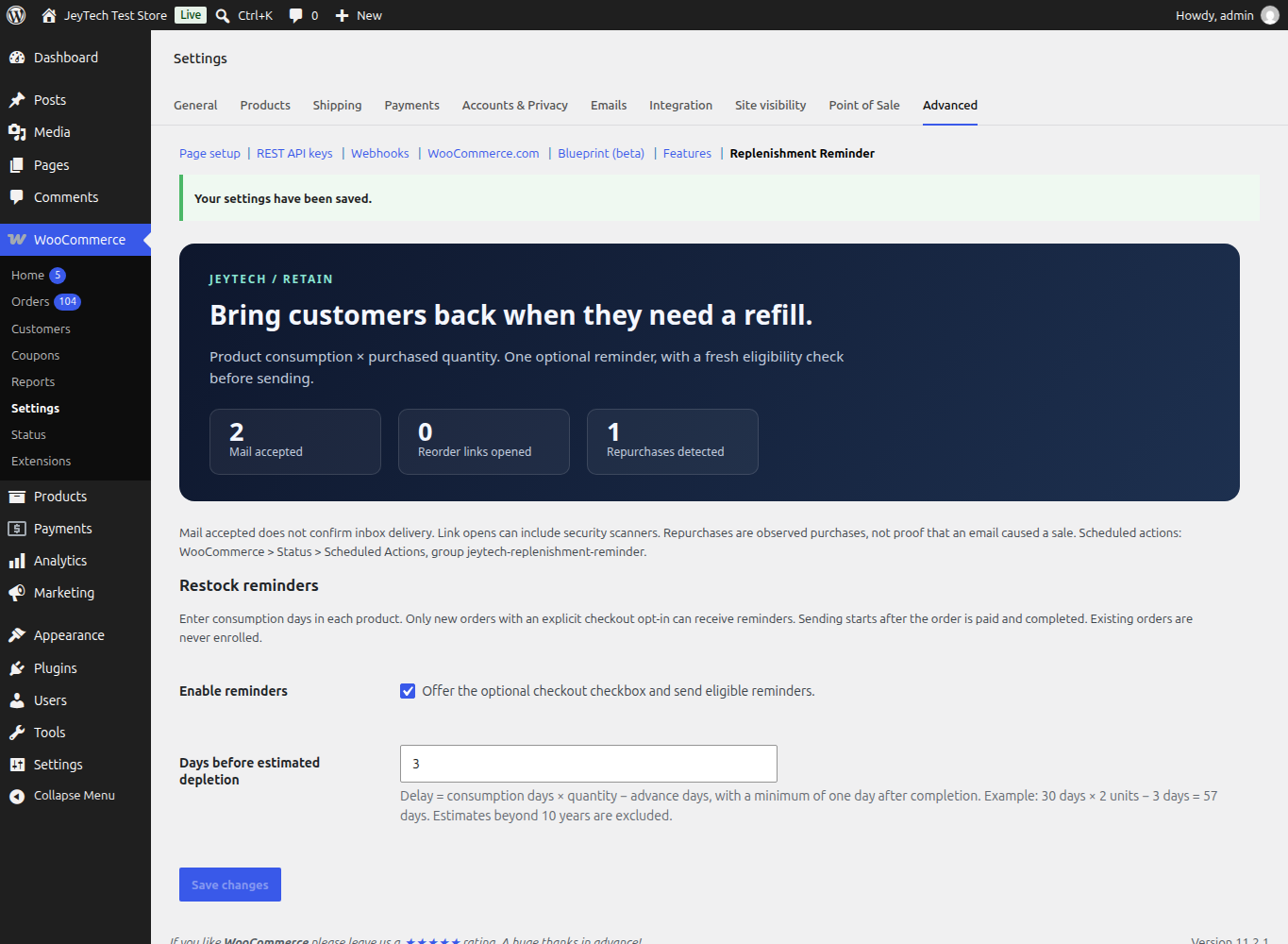
The counts in this demonstration are test activity, not merchant results.
3. Verify explicit consent in both checkouts
Use a fresh classic checkout with your test email address. The optional checkbox reads Email me restock reminders for eligible products in this order. I can unsubscribe at any time. It starts unchecked. Complete one test purchase without selecting it and another with it selected.
Repeat in Checkout Blocks. Keep the Order information block in the checkout editor so the optional order field can appear. Guest customers can also choose the reminder. Consent is saved for that particular order; it is not inferred from an account or a previous purchase.
Use a test method that records payment, then mark the paid orders Completed. Manually creating an order in the admin does not supply checkout consent. Do not mark an unpaid real order as paid merely to schedule a reminder.
Expected result: only explicitly opted-in, paid and completed orders with an eligible product receive scheduled reminders.
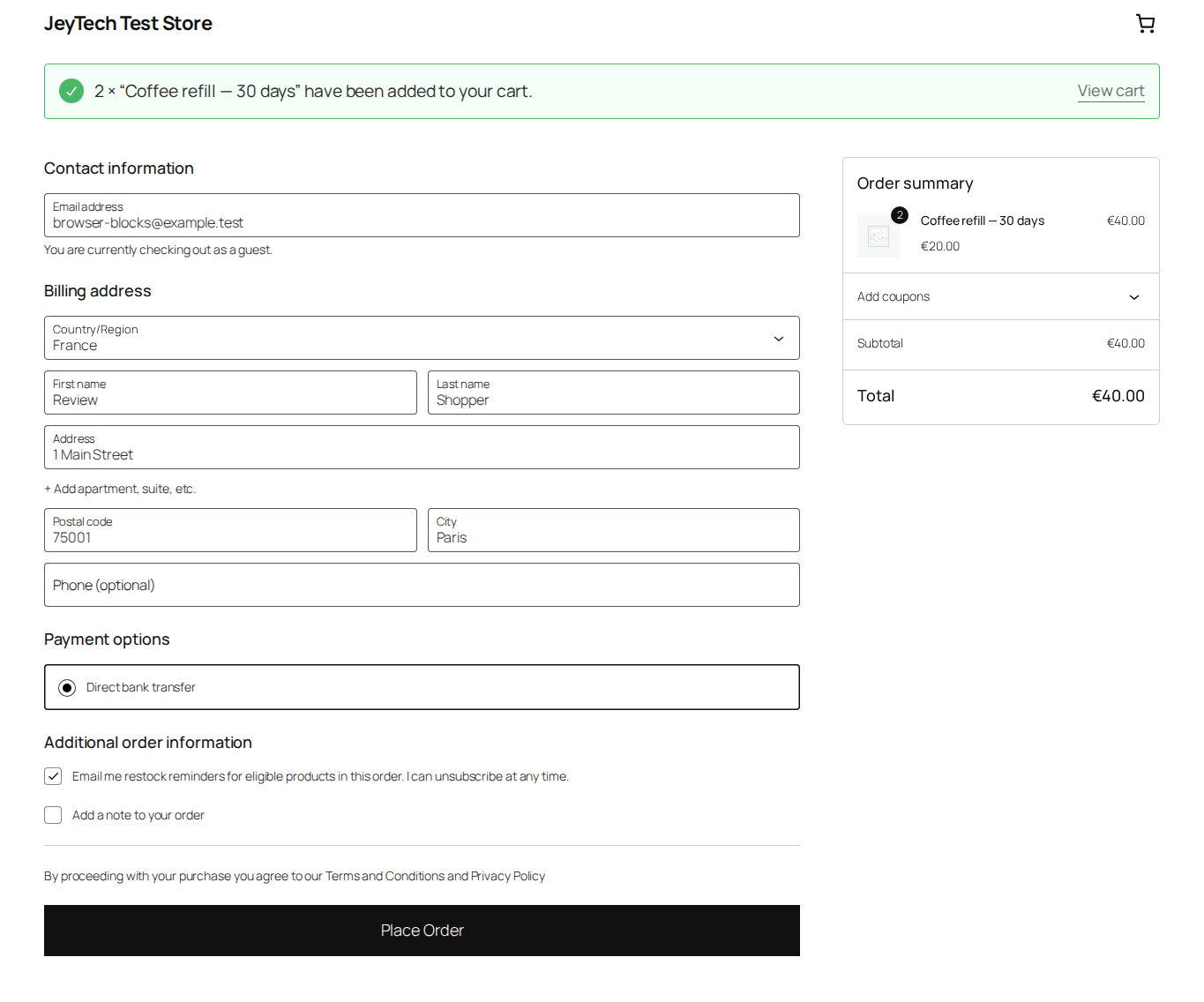
The box is selected in this capture because the test customer chose it; it is not selected by default.
4. Test a due action and the email
For a short test, set the product’s consumption to 1 day and the advance to 0 before a new purchase. Buy one unit with explicit consent, using your test email, then complete the paid order. The minimum delay is still one day.
Open WooCommerce → Status → Scheduled Actions. Search for hook jeytech_replenishment_reminder_send in group jeytech-replenishment-reminder. Check the order and item arguments and the scheduled date. The 30-day/two-pack example should instead be due 57 days after completion.
Wait until the one-day test is due. Let the task runner execute it, or use Run on that due pending action. Running it early does not bypass the plugin’s due-date check: no message is sent, and Action Scheduler can mark that manual execution complete without leaving a future attempt. If you ran it early, create a fresh opted-in test order and wait for its due date.
Verify the plain-text reminder in your controlled mailbox or mail capture. The reorder link adds one unit to the cart; it does not place an order or charge a payment method. Check the store-wide unsubscribe link in that test message.
Expected result: one eligible line produces at most one mail attempt when due, with a reorder link and an unsubscribe link. A completed scheduled action alone does not establish that an email was sent.
WooCommerce’s scheduled actions documentation explains the screen and WP-Cron dependency. Low traffic or a broken runner can delay execution; arrange a reliable server cron with your host if needed.
Check when a reminder should be suppressed
Use separate test orders to verify a later paid purchase, a refund, an unavailable product and an unsubscribe before their reminders are due. A later paid purchase at the same billing email suppresses the older reminder for the same simple product or exact variation, even without a new reminder opt-in. Buying a different size is not necessarily the same variation.
Cancelled, failed or refunded orders stop pending reminders; partial refunds cancel affected lines conservatively. Eligibility is checked again before sending: changed recipients, unavailable or out-of-stock products, and unsubscribed addresses are skipped.
Unsubscribing stops replenishment emails to that address across the store, not just for one product. Only a later purchase with fresh explicit consent can restart reminders. Describe the use of order email, products and quantities, your mail provider and order retention in your privacy information. Consent is stored with the order; the plugin adds no external sending service.
Read the activity counts carefully
| Counter | Meaning and limit |
|---|---|
| Mail accepted | WordPress’s mail transport reported success. This does not confirm inbox delivery. Failed or uncertain attempts are not automatically retried. |
| Reorder links opened | The first valid reorder-link visit is counted per order line. Email security scanners may visit it too; this is not an email-open count. |
| Repurchases detected | Matching paid purchases detected for tracked lines, including checks within a 90-day window and before dispatch. It is not proof of an email-driven sale or incremental revenue. |
The repurchase search is bounded for large histories; it can conservatively suppress a reminder rather than complete an unlimited scan. Reaching that limit before dispatch can also increment Repurchases detected without confirming a matching purchase. Counts describe plugin activity, not all customers or all repeat sales.
Limits and troubleshooting
Free supports simple products and variations, one reminder per eligible line and estimated timing. It does not provide multi-step campaigns, coupons, learned consumption, bundles, composites or subscriptions. Several eligible lines can produce several separate messages.
If no action appears, check enablement at checkout, consent, saved consumption days, paid date and Completed status. If an action completes without mail, check whether it was run early or became ineligible. Disabling reminders prevents sending; deactivating the plugin cancels pending actions, and reactivation does not reconstruct them.
Replenishment Reminder Pro adds up to two extra reminder steps, unique WooCommerce coupons, carts with the original quantity and variation, editable EN/FR HTML emails, and a bounded click-linked repurchase report with CSV export. Keep Free active and follow the Pro installation and usage guide.
For pack-size comparisons on those same consumables, read Show the price per kg or litre in WooCommerce.

