

Add safety PDFs to WooCommerce products
Attach PDFs to a brand, pass them to its products and handle exceptions without editing every description.
A manufacturer supplies one safety PDF for several products. Instead of copying its link into every description, attach the document to the brand with Safety Data by Brand Pro. This tutorial covers product inheritance, exceptions and checking the result on the storefront.
What you need
- WooCommerce, free Safety Data by Brand and Safety Data by Brand Pro, active with an activated Pro license. These steps use Free 1.0.0 and Pro 1.0.1.
- Existing products and brands, with permission to edit them.
- PDFs intended for public access, already in the WordPress media library.
Free displays manufacturer data. Attaching PDFs and managing them by brand or product requires Pro. The installation guide covers activation and minimum versions.
1. Prepare one brand as an example
Choose a brand and two products assigned to it. Use test products for the first check. Confirm that the PDF is current, readable and intended for customers. Upload it to the media library if needed.
WordPress media URLs are public. The plugin rejects missing, private or non-PDF documents, and media attached to unpublished parent content. It does not make an internal file suitable for customers.
Expected result: one brand, two products and a public PDF are ready. The person responsible for the catalog has approved the document to display.
2. Attach the PDF to the brand
Open Products → Brands and edit the chosen brand. Under Safety PDFs · Pro, click Choose PDFs. Select the document from the media library and save the brand.
You can select up to 50 PDFs. The plugin attaches existing media; it does not automatically download documents from the manufacturer’s website.
Expected result: the PDF appears in the brand’s saved selection. Products set to inherit can use that same list.
3. Check inheritance and exceptions
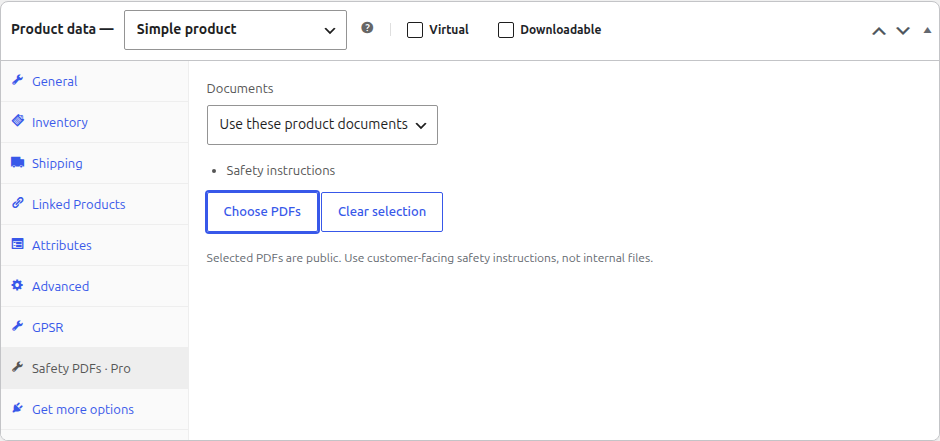
Edit the first product. Under Product data → Safety PDFs · Pro, select Use brand documents, then update the product.
For the second product, choose the appropriate behavior:
| Setting | Result |
|---|---|
| Use brand documents | The product inherits its brand’s PDF list. |
| Use these product documents | The product’s selection replaces the entire brand list. An empty list displays nothing. |
| No documents for this product | No safety PDFs appear on this product page. |
A replacement does not add product PDFs to the brand list. Select the entire list you want. Variations use their parent product’s documents.
When several brands are assigned, inheritance follows the first brand by name used by the free plugin. Set an explicit product replacement when a different document list is needed.
Expected result: the first product inherits the shared PDF and the second follows its exception. You have not copied a link into either description.
4. Check the storefront
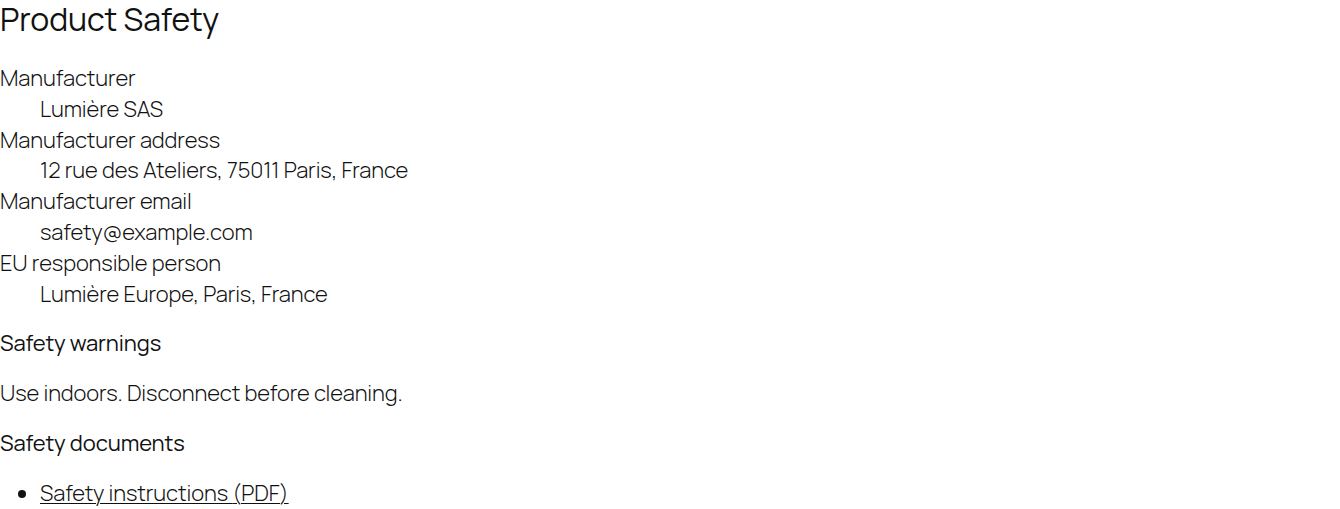
Open both product pages as a visitor. On a classic theme, links appear in the safety tab. On a block theme, check the corresponding section. Open each PDF to confirm it is the correct file.
Check the page on a phone too. For a variable product, check it after selecting a variation. A product with only PDFs can still display the tab. The free plugin’s display setting and filters also control document visibility.
Expected result: links appear once, open the expected files and follow each product’s saved mode.
5. Find remaining products in the audit
Open WooCommerce → Safety Data Pro → Audit. Filter by brand and PDF presence to review the relevant products. Continue to later batches when the catalog is larger than the current page.
Use Export filtered audit to send a CSV to the catalog owner. It includes all matching products, including those beyond the current page. It records final manufacturer values, empty fields and the PDF count.
Expected result: you have a list to review with the client. The audit report is not an import file: the CSV import guide explains the template used to change data.
If a document is missing
| Situation | Check |
|---|---|
| No PDFs appear on a product | Active license, saved mode and the free plugin’s display setting. |
| The wrong PDF is inherited | Selected brand, product assignment and any replacement. |
| A document cannot be selected | PDF type, public media status and whether its parent content is published. |
| A variation has no separate PDF | Configure its parent product’s documents. |
| A deleted PDF disappears from the page | Select an existing public media item to replace it. |
The plugin displays supplied documents; it does not write their instructions or check their regulatory suitability. Ask the person responsible for the products to approve the files.
For document management across several stores, see Safety Data by Brand Pro plans. The installation guide also covers manufacturer imports and batch edits.

