

Install Safety Data by Brand Pro
Activate your license, import manufacturer CSVs, edit brands and products in batches, attach safety PDFs and export a filtered audit.
Safety Data by Brand Pro extends JeyTech Safety Data by Brand. Keep the free plugin and WooCommerce active. Pro uses their existing manufacturer fields, so a CSV or bulk change is reflected in the same product safety section.
Prerequisites
- WordPress 6.6+, PHP 7.4+, WooCommerce 9.6+ and Safety Data by Brand 1.0.0+. WooCommerce 9.6 itself requires WordPress 6.6.
- Administrator access to install plugins, then permission to manage WooCommerce and edit the target products or brands.
- A Safety Data by Brand Pro license with an available store slot. Keys for the other JeyTech Pro products cannot activate this add-on.
- A current database and media backup before importing or editing a large batch.
1. Download and install
After confirmed payment, download jeytech-safety-data-by-brand-pro-1.0.0.zip from the purchase email. The same email contains your license key and links to this guide in English and French.
Keep the ZIP zipped. Open Plugins → Add New Plugin → Upload Plugin, upload it, install and activate it. Activate WooCommerce and the free plugin too.
Expected result: all three plugins are active and WooCommerce → Safety Data Pro is available. If a dependency notice appears, check the versions and activation of both dependencies.
Download links last seven days. Use My subscription with the purchase email to recover your key and a fresh link while your subscription is active.
2. Activate the license
Open WooCommerce → Safety Data Pro → License. Enter the key from your purchase email and choose Activate license.
Expected result: Activated on this store appears and the Audit, Import / export and Bulk editing tools become available. The plugin stores an activation token; it does not store your purchase key in WordPress options.
Activation sends the key and store URL to jeytech.app. Update checks use the activation ID and token. Product, manufacturer, customer and order data are not sent by this add-on.
Solo permits 1 store, Studio 5, Agency 25. There is no catalog quota. Before moving a license, choose Deactivate this store on the old store; its Pro tools stop and its saved data stays. Activate the key on the new store afterward.
3. Import or export manufacturer data
Open Import / export. Export your brands or products first as a backup, or download the empty template. CSV targets must already exist: the import does not create brands or products.
The file must be UTF-8, with a comma or semicolon separator. A batch can contain 500 rows / 2 MB. Split larger imports into successive batches. Keep column names unchanged in either interface language.
| Column | Meaning |
|---|---|
kind |
brand or product |
id |
Existing brand term ID or parent product ID; variation IDs are rejected |
manufacturer, address, email, eu_responsible |
Manufacturer fields already used by the free plugin |
warnings |
Product safety warnings; leave empty for brands |
documents_mode |
replace for brands; inherit, replace or none for products |
document_ids |
IDs of editable public PDF attachments, comma-separated inside a quoted CSV cell |
format |
Keep jeytech-sdbb-v1 when reimporting an exported backup |
At least one editable field column must accompany kind and id. An absent column stays unchanged. A present empty cell clears its stored field. A blank product manufacturer field then inherits the brand's value, as in the free plugin. Warnings belong to products. Document IDs refer to existing media; they do not download remote files.
Choose Preview import. All rows are validated before any changes. Duplicate targets, invalid emails, inaccessible IDs and non-PDF documents reject the batch.
Read Confirm changes, then choose Confirm and apply. The preview is tied to your user and lasts ten minutes. If a target's data changes after the preview, nothing is applied and you must create a new preview. For batches over 50 targets, the table shows the first 50; confirmation applies the entire validated batch.
Expected result: the number of updated targets appears. Check one brand and one product before processing the next batch.
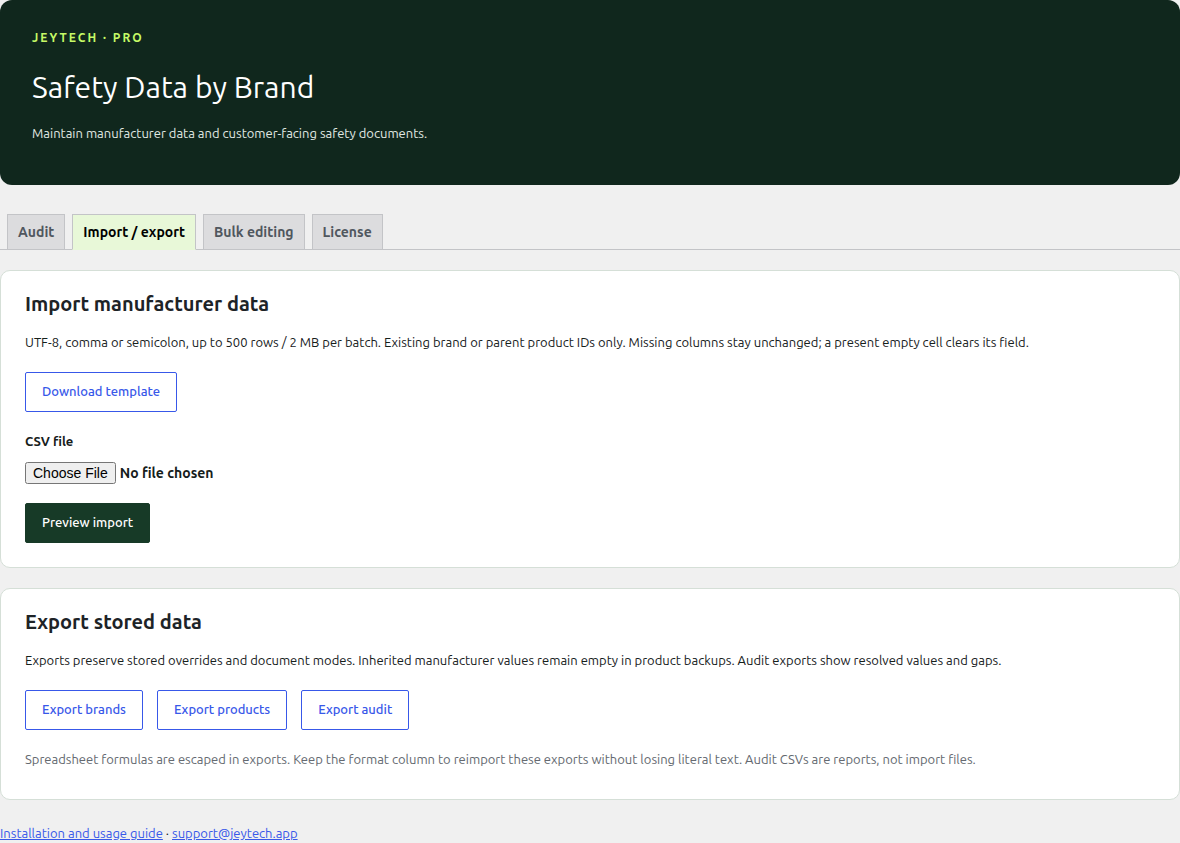
Brand and product exports preserve stored overrides and document modes; they do not copy inherited manufacturer values into products. Formula-like spreadsheet text is escaped for export. Keep the format column when reimporting these backups to preserve literal text. An audit CSV contains resolved values and gaps: it is a report, not an import file.
4. Edit in batches
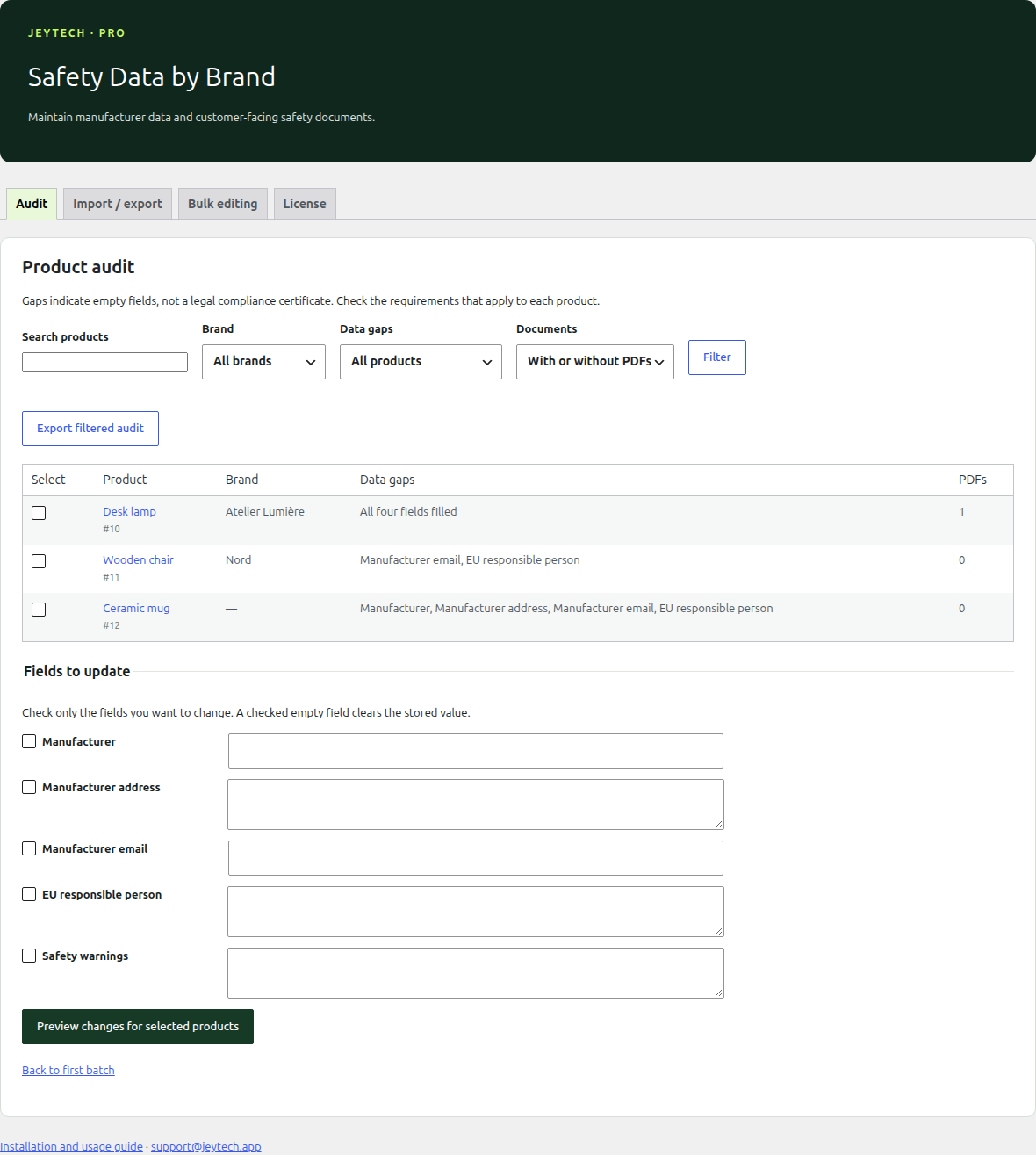
For products, open Audit, filter if needed and check the rows to change. Under Fields to update, check only the fields to change and enter their new values. Choose Preview changes for selected products, inspect the preview and confirm.
For brands, open Bulk editing, select brand names and use the same field selection and preview. Warnings belong to products. A batch can contain up to 100 targets; process more in successive batches.
Expected result: only the chosen safety fields change. Checked empty fields clear their values; unchecked fields stay unchanged. Prices, stock and orders are not edited by these tools. Changing a brand affects products that inherit its fields; product overrides keep priority.
5. Attach safety PDFs
In Products → Brands, edit a brand and use Safety PDFs · Pro → Choose PDFs. Select public customer-facing PDFs from the WordPress media library and save the brand.
On a product edit screen, open Product data → Safety PDFs · Pro and choose:
- Use brand documents: inherit PDFs from the same brand the free plugin uses for manufacturer data.
- Use these product documents: replace the brand's list with the selected product PDFs. An empty list shows none.
- No documents for this product: hide PDFs on this product.
Select up to 50 PDFs and update the product. Variations use their parent product's documents. If multiple brands are attached, the free plugin's first brand by name supplies inherited data and PDFs; use an explicit product replacement if necessary.
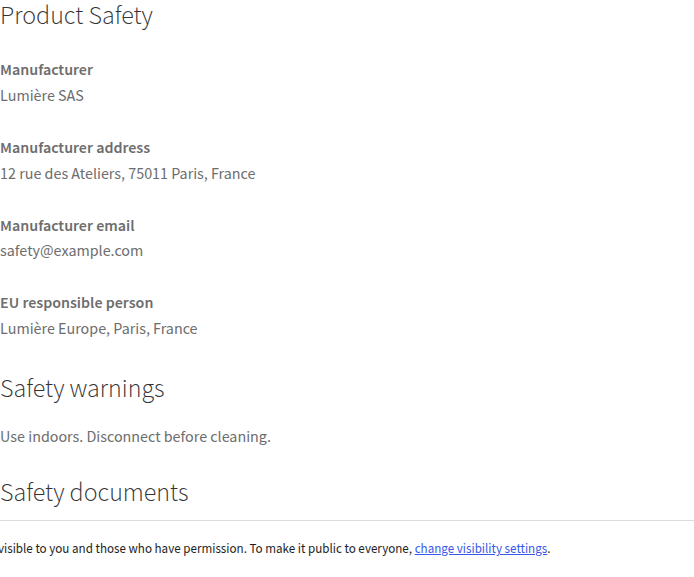
Expected result: the product safety tab in a classic theme, or section in a block theme, displays the PDF links once. Products with only PDFs also get a safety tab. The free plugin's display setting and display filter control both manufacturer information and PDFs.
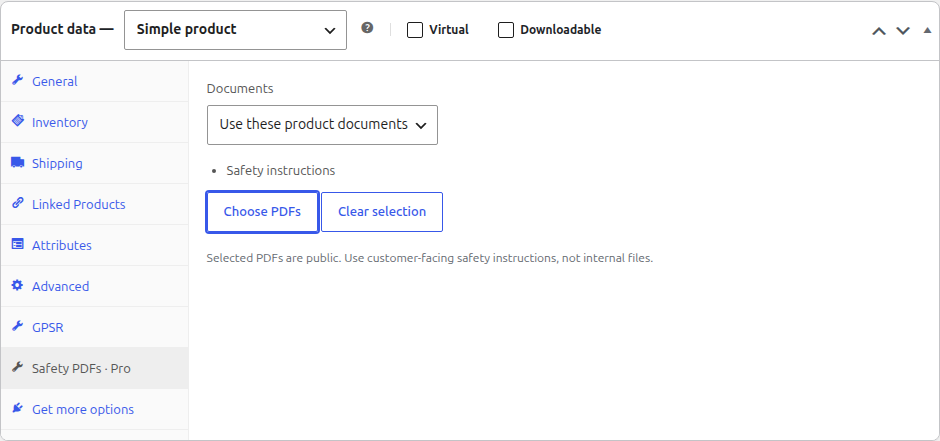
Attachment URLs are public: do not select internal or confidential files. Private, trashed, missing or non-PDF attachments are rejected or removed from output. PDFs attached to unpublished parent content cannot be selected. This add-on does not create safety instructions or certify their suitability.
6. Filter and export the audit
Open Audit. Filter by product search, brand, missing manufacturer field and PDF presence. All four fields filled means the four stored or inherited values are nonempty; it does not certify regulatory compliance. Check each product's applicable requirements yourself.
Choose Export filtered audit for all matching products, including those beyond the current page. The screen shows batches of 50 matches; Next batch continues through the catalog. A sparse filter can return an empty batch with a continuation link; continue or refine the filter.
Expected result: the CSV reports product IDs/names, resolved manufacturer data, empty fields and PDF counts.
7. Language, updates and expiry
Pro 1.0.0 includes English and French (fr_FR), plus a French fallback catalog for the free plugin. WordPress language packs take priority. The administration interface follows your profile language, or the site language when your profile uses the site default. Storefront labels follow the site language. Switching language preserves manufacturer text, warnings and PDF selections.
With an active subscription and activated license, private updates appear under Dashboard → Updates or Plugins. Checks can cache results for six hours. For a manual update, upload the newer ZIP for this same product and accept WordPress's replacement; saved fields and license activation remain.
After subscription expiry, already activated tools keep working. Renewal restores downloads, updates and support. Deactivating the license stops Pro tools on that store and frees its slot. Deleting the plugin retains manufacturer data and PDF selections; back up or delete them through WordPress as needed.
Common problems
| Situation | Check |
|---|---|
| Missing Pro menu | Dependency versions and permission to manage WooCommerce |
| Key refused | Correct product key, subscription, HTTPS access to jeytech.app, available store slot |
| CSV rejected | UTF-8, exact columns, existing parent IDs, no duplicate targets, valid email and public PDFs |
| Preview expired or changed | Create a new preview; no rows from that rejected confirmation are applied |
| Brand change not visible | A product override takes priority; clear that override to inherit |
| PDFs missing | License activation, mode, media status/parent status, free display setting and theme |
| Empty audit | Clear filters or continue to the next batch |
| French or update missing | WordPress language, activation, subscription and six-hour update cache |
Use the contact form or support@jeytech.app. Include WordPress/WooCommerce/PHP and both plugin versions, the screen and exact error. Use My subscription for billing, recovery and renewal. Keep passwords, keys and confidential CSV data out of public posts.

