

How to show the price per kg or litre in WooCommerce
Enter net quantities, display a WooCommerce unit price per kg or litre, and check sales, variations and cart display with Unit Price Guard Free.
A 250 g coffee bag at €5 costs €20/kg. A 75 cl bottle at €9 costs €12/litre. Showing both the selling price and the price per unit of measurement helps customers compare different pack sizes. This guide sets up that display with JeyTech Unit Price Guard Free.
The EU framework for price indication includes unit prices, subject to exceptions and national implementation. Its definition includes VAT and other taxes. Check the rules for your products and country, and your shop’s tax display; the plugin follows your settings rather than deciding which goods need the notice. See Directive 98/6/EC, Articles 2–5.
What WooCommerce provides
WooCommerce’s standard product editor has regular and sale prices and a shipping weight. A shipping weight or a “250 g” attribute does not by itself calculate a price per kg below the selling price. Its product editor documentation describes these separate fields. Writing “€20/kg” in a description requires manual updates when the price changes.
Unit Price Guard stores the net contents of one sold item, separately from shipping weight, and calculates from the active product price. It does not change the selling price, stock or quantity sold.
What you need
- WordPress 6.6+, WooCommerce 9.6+, PHP 7.4+ and permission to manage WooCommerce.
- Unit Price Guard Free installed and active alongside WooCommerce.
- A test product and a test store using your normal tax display settings.
The steps cover Free 1.0.1. The existing screenshots show the English interface in 1.0.0, with the same quantity and display controls.
1. Enter the net quantity of one item
Open Products → All Products, edit a simple product and go to Product data → General. For a bag containing 250 g of coffee, enter:
| Field | Value |
|---|---|
| Net quantity | 250 |
| Unit | g |
| Unit price shown | Per kg, l, m or m² |
Save the product. Use the contents of one bag, excluding its packaging. Do not enter the number of bags in stock. For the €5 example, arrange the product price and taxes so the displayed selling price is €5.
Expected result: the product page shows €5 and €20/kg, with your currency formatting.
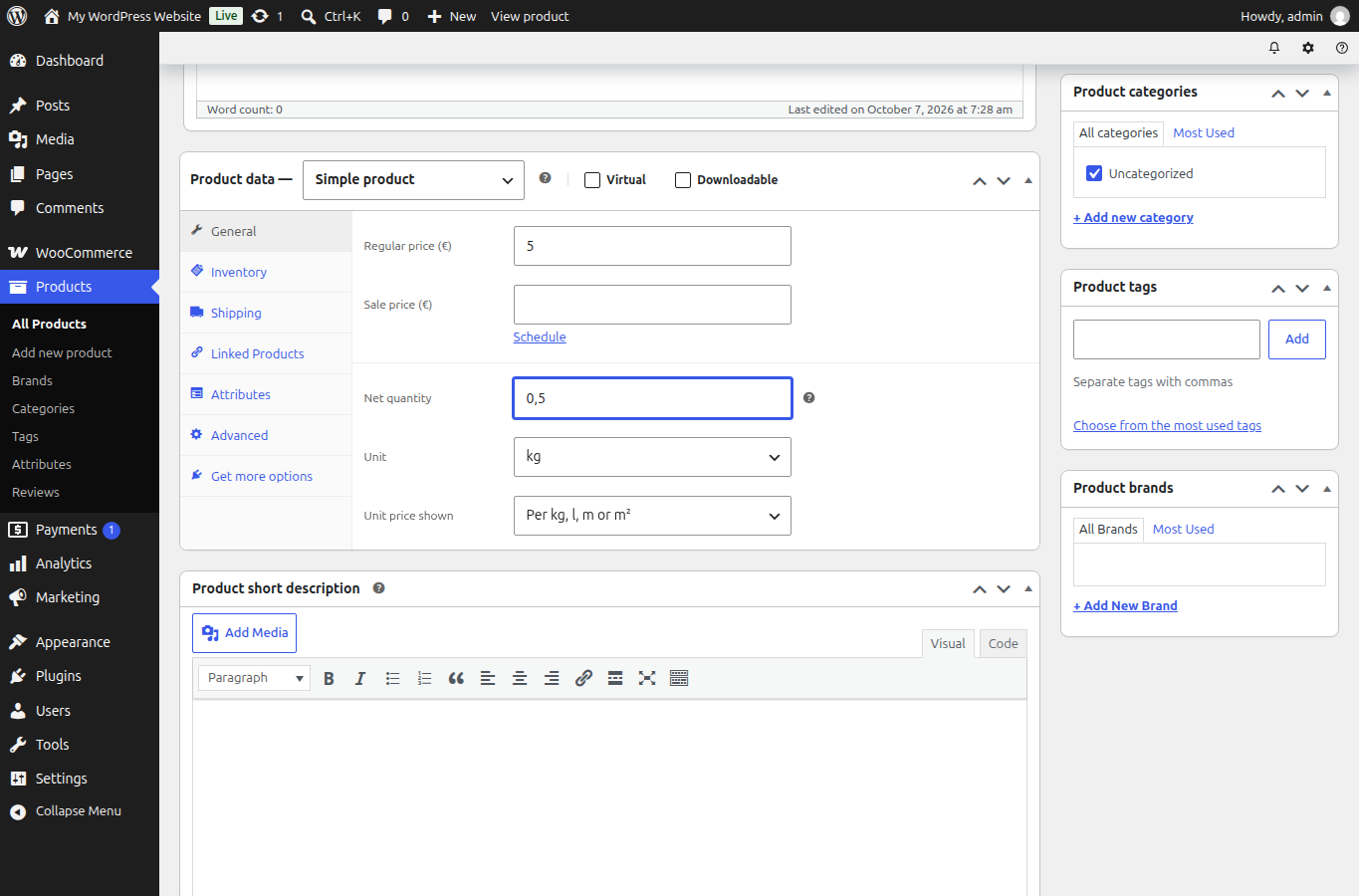
This existing capture uses 0.5 kg and €5. Use 250 g for the example in this guide.
2. Choose the reference and display
For a 75 cl bottle displayed at €9, save Net quantity = 75, Unit = cl and the default reference: the result is €12/l. Mass and volume also support Per 100 g or 100 ml. Coffee at €5 per 250 g becomes €2/100 g with that reference.
Supported quantity units are g, kg, ml, cl, l, cm, m and m². The default reference is kg, l, m or m² according to the dimension.
Under WooCommerce → Unit Price, leave Under the price on product pages and product lists and In the cart, mini-cart and checkout checked if you want both displays. Both start enabled. Format accepts {price} and {unit}, for example {price} / {unit}; leaving it empty uses the default. A custom format must include {price} and stay within 100 characters. Save changes.
Expected result: the bottle shows €12/l, and the cart includes a Unit price line when its display option is enabled.
3. Check sales and variations
Temporarily reduce the coffee’s displayed selling price from €5 to €4. Its unit price becomes €16/kg. Restore the intended price after testing.
For a variable product, set parent quantity values in Product data → General, then open Variations and enter each size’s own quantity, unit and reference. Leaving the variation’s quantity empty uses the parent values. Check each selected variation, especially when pack sizes differ.
The parent shows a unit-price range only when every visible priced variation has usable quantity data and shares the same reference unit. Mixing per kg and per 100 g prevents a common range; the selected variation can still show its own price.
Expected result: sale prices recalculate the notice, and selected variations use their own quantity or the intended parent fallback.
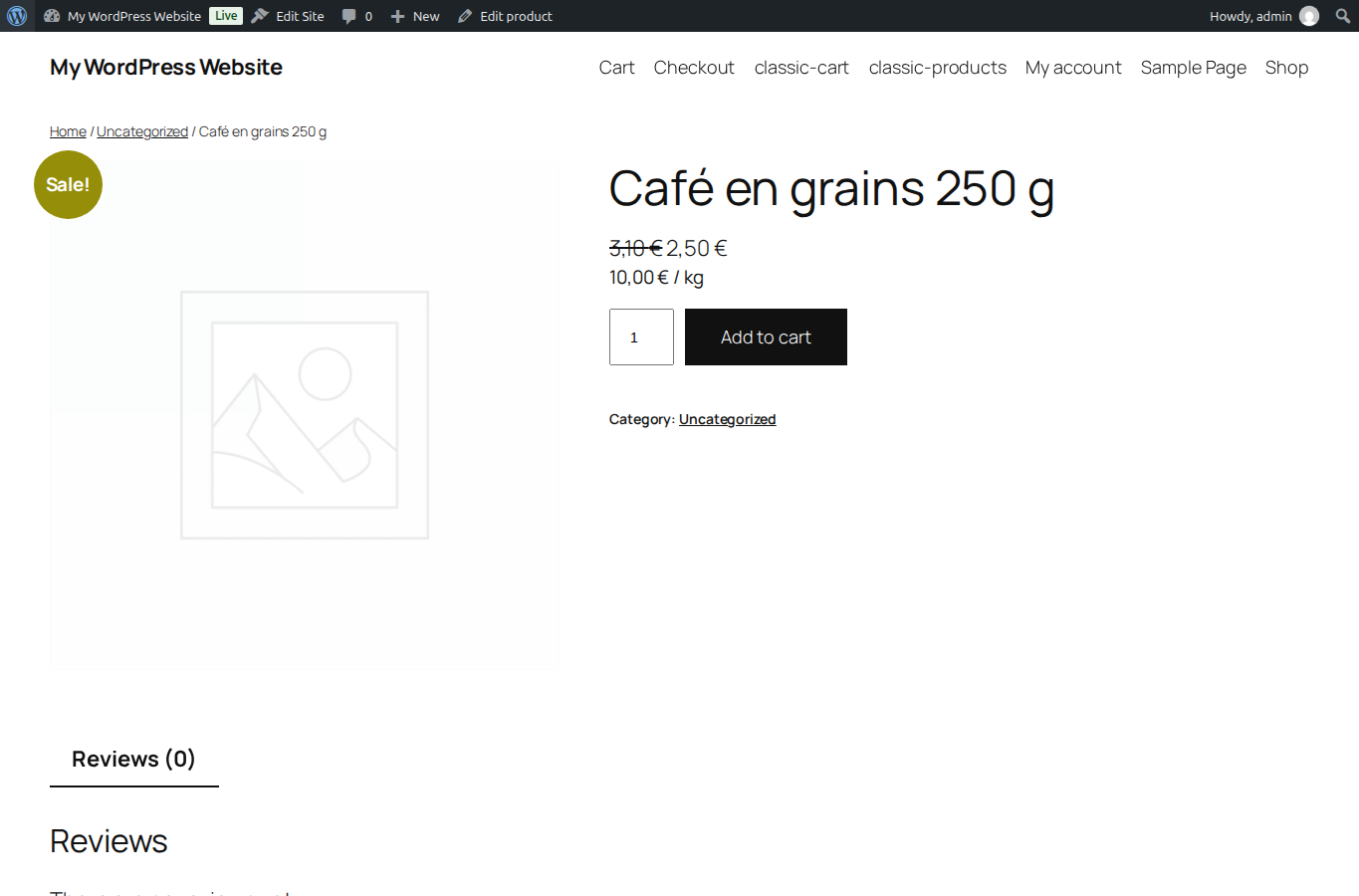
This demonstration uses €2.50 for 250 g, giving €10/kg.
4. Verify product lists and both cart layouts
Check the product page, shop list and product blocks your theme uses. Add one item to the cart, then two. Check classic cart/checkout and Cart/Checkout Blocks on your test store. The unit price remains a price per reference quantity, not a total for the whole cart line.
Product displays follow WooCommerce’s shop tax display; cart displays follow its cart tax display. Free uses the active product price, including a sale, without allocating checkout coupon discounts into that unit-price line. A coupon can therefore lower the line total while the displayed unit price stays unchanged.
Expected result: quantity, reference and tax display are correct in your theme; coupon totals are not mistaken for Free’s displayed unit price.
What Pro adds
Unit Price Guard Pro adds native WooCommerce CSV import/export of net quantities, a paginated catalog coverage audit, and a purchased unit-price snapshot for new standard classic and Blocks orders. That snapshot uses the final product-line total after coupons, excluding tax, and appears in native order details and emails.
Old orders are not backfilled. Shipping, fees and refunds are not allocated into the snapshot, and no specific PDF invoice connector is included. Keep Free active and follow the Unit Price Guard Pro installation guide.
If a unit price is missing
Check the saved net quantity and unit, the display checkboxes and the selected variation. A product without usable quantity data is left unchanged. If a custom price template bypasses WooCommerce’s standard price output, compare it with a standard template on your test store.
For a separate check of discounted selling prices against product costs, read Stop coupons from selling below cost. For promotion reference prices, see the lowest price over 30 days.