

Install Omnibus Price Guard Pro
Install the Pro ZIP, activate your license and configure the country, reference period, exclusions, promotion audit and CSV export.
This guide takes you from download to a first promotion audit and history export. Omnibus Price Guard Pro extends JeyTech 30-Day Price History for WooCommerce: keep both plugins active.
Prerequisites
- A WordPress administrator account to install plugins, then an account allowed to manage WooCommerce for configuration.
- WordPress 6.5 or later and PHP 7.4 or later. WooCommerce and your other plugins must also support your installation.
- WooCommerce and JeyTech 30-Day Price History for WooCommerce 1.0.0 or later, installed and active.
- An Omnibus Price Guard Pro license, with an available store slot. An Unpaid Transfer Guard Pro key cannot activate this product.
1. Download the right ZIP
After a confirmed payment, open the JeyTech email and download the Omnibus Price Guard Pro ZIP. Keep the file zipped for installation. Your license key is in the same email.
The download link lasts seven days. If it has expired, use My subscription with your purchase email address to request another link. Downloads require an active subscription.
Expected result: you have jeytech-omnibus-price-guard-pro-1.0.1.zip and your license key.
2. Install and activate the plugin
In WordPress, open Plugins → Add New Plugin → Upload Plugin, select the Pro ZIP, install it and activate it. Activate WooCommerce and JeyTech 30-Day Price History too.
Expected result: all three plugins are active and WooCommerce → Omnibus Pro is available. Activating the plugin and activating the license are separate steps.
3. Activate the store license
Open WooCommerce → Omnibus Pro, paste your key into License key, then click Activate license. WordPress contacts jeytech.app to register this store.
Expected result: License activated appears and the Pro settings become available. WordPress stores an activation token; your purchase key is not stored in the site's options.
To move a license, use Deactivate this site on the old store before activating the new one. Pro features stop on the old store. Starter and Growth allow one store; Business allows five.
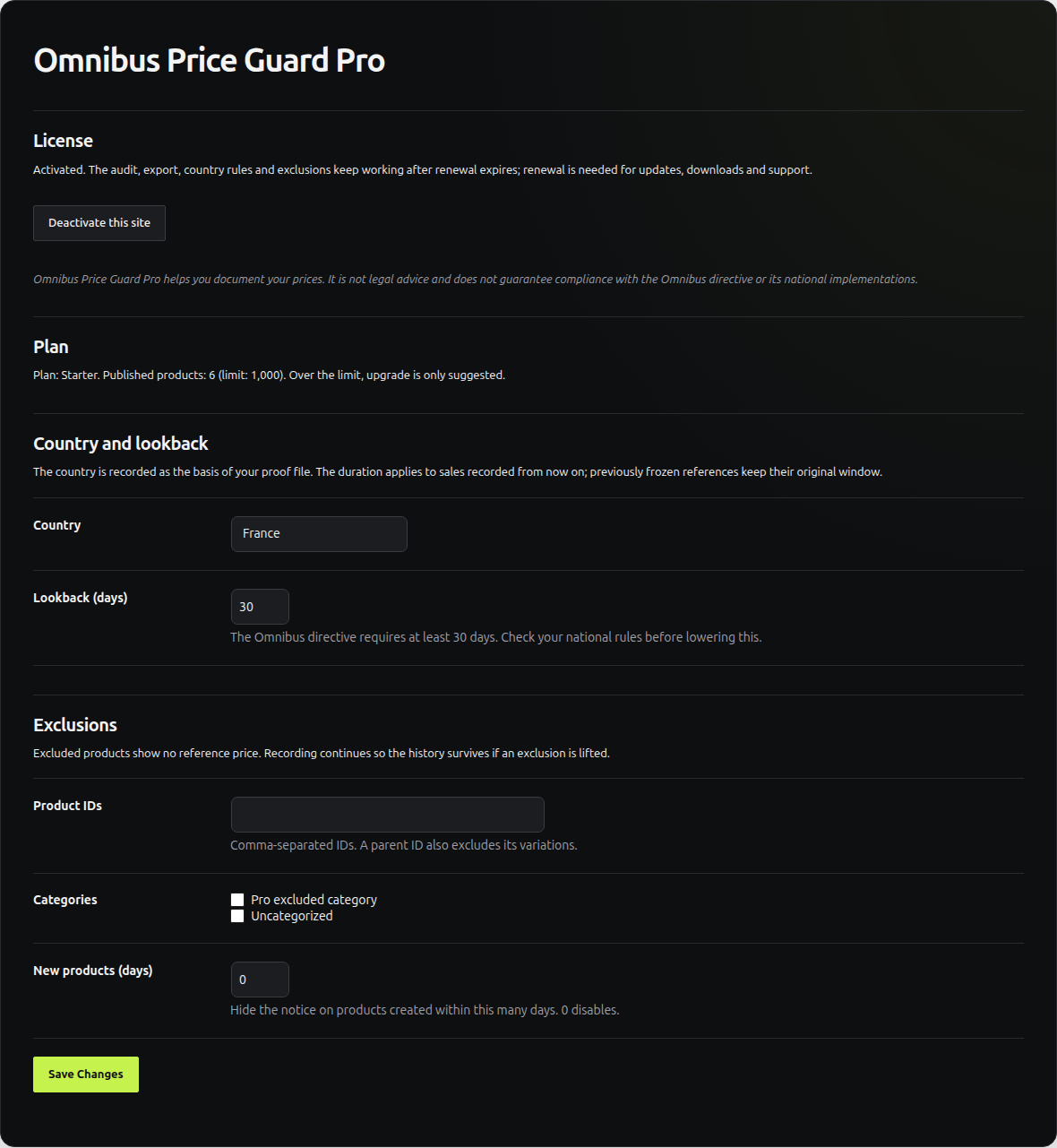
4. Set the country, period and exclusions
Under Country and lookback, select the country and duration. The standard duration is 30 days. The country is recorded in your proof file. Changing the duration affects sales recorded afterward; previously frozen references keep their original period.
Under Exclusions, hide the reference for product IDs, categories or products created within a set number of days. A parent product ID also excludes its variations. For new products, zero disables that exclusion.
Save your settings. Exclusions hide the notice, while price recording continues. If you remove an exclusion, the recorded history is still available.
Expected result: the country, duration and exclusions are saved. Excluded products do not display a reference-price notice.
5. Read the audit and export history
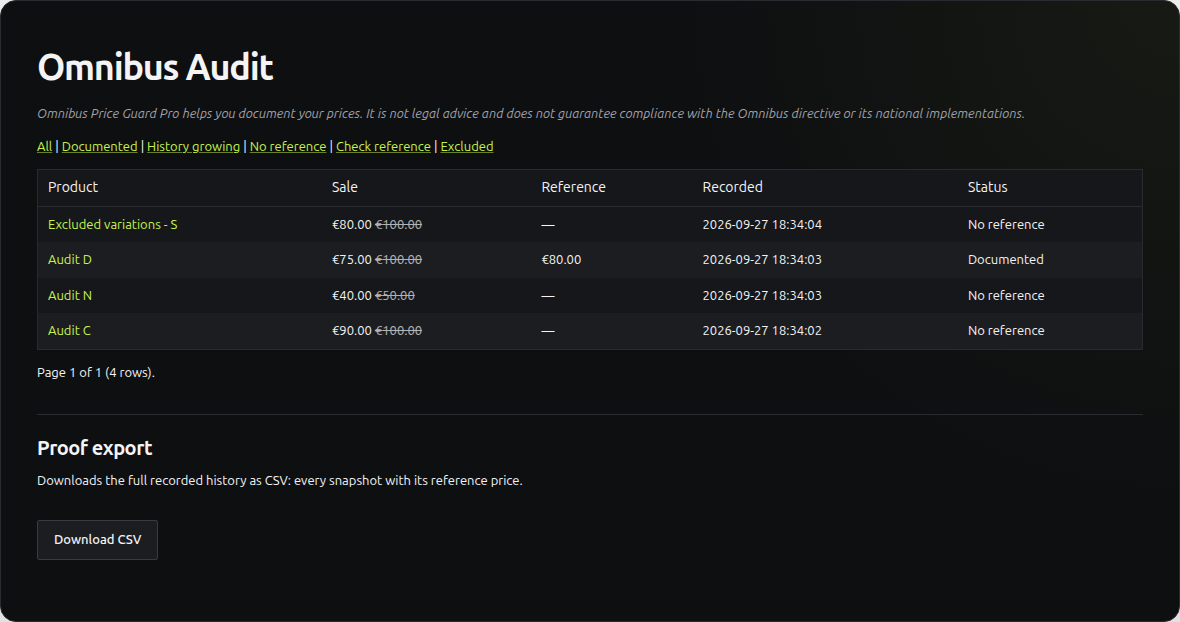
Open WooCommerce → Omnibus Audit. The list covers active sales and can be filtered by status:
- Documented: a usable reference is present.
- History growing: the recording period is still too short.
- No reference: the sale has no recorded reference.
- Check reference: compare the reference with the current regular price.
- Excluded: your settings exclude this product from reference display.
Under Proof export, click Download CSV. The file contains the full recorded history, each snapshot with its reference. Technical CSV column names stay the same in both languages so existing imports keep working.
Expected result: sales appear in the audit and the CSV downloads. An empty list can simply mean that no sale is currently active.
Prices from before installation cannot be reconstructed. Pro cannot create a retrospective reference for a sale that started without enough recorded history. The tool documents prices; its audit is not a compliance certificate or legal advice.
6. Choose English or French
Pro 1.0.1 includes French fr_FR. The administration interface follows your WordPress profile language, or Settings → General → Site Language when the profile uses the site default.
Country labels, settings, audit statuses and license messages are translated. Changing the language does not change your products, prices or CSV data. WordPress.org distributes JeyTech 30-Day Price History translations separately.
Expected result: Pro screens use your chosen language and your data stays unchanged.
7. Install updates
With an activated license and an active subscription, Pro updates appear under Dashboard → Updates or Plugins. Private update checks can cache their response for six hours, so a release may take time to appear.
Keep a current backup before updating. For a manual update, upload the new ZIP for the same product and accept the replacement offered by WordPress. Settings and activation are preserved.
After subscription expiry, already activated Pro features keep working. Updates, downloads and support require an active subscription.
Expected result: the plugin list shows the new version; your settings and the free plugin's history are preserved.
Common problems
| Situation | Check |
|---|---|
| The Pro menu is missing | Check WooCommerce, JeyTech 30-Day Price History 1.0.0 or later and your account's permissions. |
| The key will not activate | Use the Omnibus Price Guard Pro key, check the subscription and HTTPS access to jeytech.app. |
| The store limit is reached | Deactivate an old store before activating another. |
| A sale has no reference | Check the installation date and the history available before the sale. Pro cannot recreate old prices. |
| A notice is hidden | Check Pro exclusions, whether a reference exists and the free plugin's display setting. |
| The audit is empty | Check active sales and clear any status filter. |
| An upgrade suggestion appears | Your published product count exceeds the plan limit. Features are not blocked. |
| Updates or French are missing | Check activation, subscription and the six-hour cache. For French, check Pro 1.0.1 or later and the WordPress language. |
Contact support
Use the contact form or email support@jeytech.app. Include WordPress/WooCommerce/PHP and both plugin versions, the country, reference period and error message. For a missing reference, include the installation and sale-start dates. Keep passwords and license keys out of public posts.
Use My subscription for invoices or renewal. The product page details the plans: Starter for 1,000 products, Growth for 10,000 and Business with no product limit.
For common WordPress actions: install and update a plugin and set the site language.

