

Audit WooCommerce sales and export price history
Find sales without a usable reference, review exclusions and export recorded price history as a CSV.
Before handing over a store or starting another campaign, check which active sales have usable price history. This tutorial shows how to read the Omnibus Price Guard Pro audit, review questionable references and give the catalog owner an export.
What you need
- WooCommerce, free JeyTech 30-Day Price History and Omnibus Price Guard Pro, active with an activated Pro license. These steps use Pro 1.0.2.
- Permission to manage WooCommerce and at least one active sale to examine in the audit.
- Price history recorded before the sales you want to document began.
The Pro installation guide covers dependencies and activation. Free records prices and displays the reference; Pro adds the audit, exclusions and CSV export. Read the pre-sale price tutorial for how the notice works.
1. Check the reference period and exclusions
Open WooCommerce → Omnibus Pro. Under Country and lookback, check the country and duration selected for the store. The standard duration is 30 days; changing the country does not replace checking the requirements that apply to the catalog.
Review exclusions by product ID, category and new-product age. An exclusion hides the notice while price recording continues. Excluding a parent product also covers its variations.
Expected result: settings match the configuration agreed with the merchant. A duration change affects sales recorded afterward; previously frozen references keep their original period.
2. Read the active-sale statuses
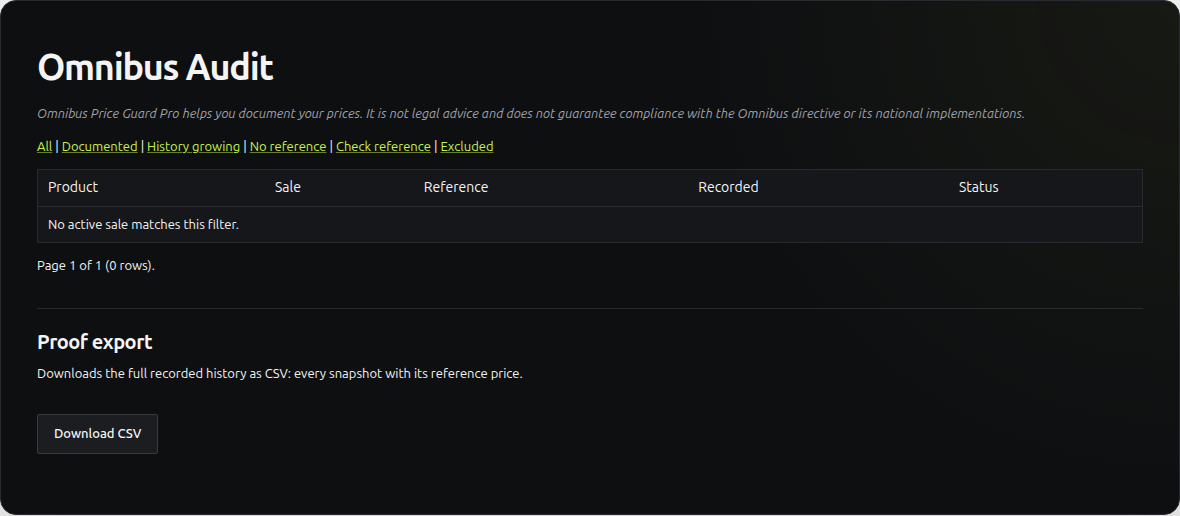
Open WooCommerce → Omnibus Audit. Start without a filter, then use the status filter to examine these groups:
| Status | Practical meaning |
|---|---|
| Documented | A usable reference is recorded. Still check the product’s data. |
| History growing | The recording period is still too short. |
| No reference | The sale has no recorded reference. |
| Check reference | Compare the reference with the product’s current regular price. |
| Excluded | Settings hide the notice for this product. |
Expected result: you know which sales need review and why. An empty audit can simply mean that no sale is active or the filter matches no products.
3. Review a product against its history
On a test store, choose a product with an established price history. Compare its regular price, sale price and displayed reference. Review a variable product’s variations too: each has its own history.
For example, a product can have a current regular price of €120, a sale price of €90 and a recorded lowest price of €80 in the period before the sale. Do not confuse the current regular price with the historical reference. They are three separate values to review.
Open the storefront page and check that the notice matches the recorded reference, when display is enabled and the product is not excluded.
Expected result: you can explain a sale’s reference using available data and identify a difference that needs a catalog check.
4. Handle incomplete history without inventing prices
If recording began recently, prices from before installation remain unknown. A sale started without enough history does not receive a retrospective reference just because you wait or change the duration.
List affected products with the installation or recording-start date and sale-start date. Ask the catalog owner to approve how to handle them. For a future sale, allow the required history to build before it starts.
Expected result: missing data is identified and there is a follow-up action. You do not present a reconstructed reference as a price that was actually recorded.
5. Export and hand over the history
Under Proof export, click Download CSV. The file contains the full recorded history, with snapshot references; it is not limited to the list visible under the audit filter. Technical column names stay the same in English and French.
Open the CSV in a spreadsheet. Check the headers and find the product reviewed in step 3. Keep the file with its export date and a note of the settings and exclusions reviewed for the store.
Expected result: the client receives a readable file and your list of follow-up items. The audit and CSV document recorded prices; they are not a regulatory compliance certificate.
If the result looks wrong
| Situation | Check |
|---|---|
| The audit is empty | Active sales and the status filter. |
| A notice is missing | Available reference, exclusions and the free plugin’s display setting. |
| A reference is missing despite installation | Recording-start date and history available before the sale began. |
| A duration change does not alter an old reference | Frozen references keep their original period. |
| The CSV includes more products than the filter | Export covers the full recorded history. |
To repeat this check across stores you manage, see Omnibus Price Guard Pro plans, including product and store limits. The installation guide covers settings, activation and updates.

