

WooCommerce checkout hours vs shipping cutoff: which do you need?
Compare opening hours, a daily shipping cutoff and delivery or pickup slots, with three merchant examples and classic/Blocks checks.
Do you need to stop new WooCommerce orders outside opening hours, hide express shipping after a daily cutoff, or let customers book a pickup or delivery slot? These are different needs. This comparison helps you choose between JeyTech Checkout Hours and Shipping Cutoff, and identifies when neither covers the request.
1. Choose the rule by its effect
| Merchant need | Appropriate choice | What the customer experiences |
|---|---|---|
| Refuse new orders outside a weekly schedule. | Checkout Hours Free, enabled in Block checkout mode. | New checkout is refused outside the ranges; products and cart remain available. |
| Accept orders outside hours but display a warning. | Checkout Hours Free, warning mode. | The order can proceed normally; payment and fulfillment are not postponed. |
| Hide one express method after 14:00 and on inactive weekdays. | Shipping Cutoff Free, enabled for that zone’s method instance. | Express disappears when shipping is recalculated; another eligible method can remain. |
| Use dated closures or different order hours per shipping instance. | Checkout Hours Pro, with Free and an activated license. | New orders follow the applicable date and selected-method schedule. |
| Choose tomorrow’s pickup slot, limit bookings per slot or reserve delivery capacity. | Neither plugin, including Checkout Hours Pro. | A separate scheduling solution is needed. |
Checkout Hours controls acceptance of new orders at the current time. Shipping Cutoff controls availability of one shipping method instance, not every method with the same name. Checkout Hours Pro validates the selected method’s order hours; it does not turn them into bookable pickup or delivery slots.
Expected result: your requirement describes either order acceptance, one shipping option’s availability or an actual booking.
2. Compare three merchant scenarios
A takeaway kitchen taking orders from 11:00 to 14:00 and 18:00 to 21:00
Choose Checkout Hours Free and block mode. Configure both ranges for each intended day. At 14:00, a new order is refused until the evening range starts. Customers can still browse and fill their cart. Paying an already existing order remains possible.
A parts merchant accepting orders all day, with express shipping until 14:00
Choose Shipping Cutoff Free. Target the express instance and leave an eligible standard option configured. On active weekdays, express is hidden from 14:00:00 onward. On unchecked weekdays it is hidden all day. Standard is subject to its own WooCommerce conditions; the plugin does not create an alternative or promise a delivery date.
A bakery offering six pickup places every half hour tomorrow
Neither plugin books those places or records a chosen pickup slot. Checkout Hours can limit when customers place orders, and its Pro edition can use a separate order schedule for pickup. Shipping Cutoff can hide a pickup instance after a cutoff. Neither provides a capacity calendar, date picker or slot reservation.
Expected result: the kitchen controls new checkout, the parts merchant controls express availability and the bakery identifies the missing booking function.
3. Use the store timezone for both rules
Open WordPress Settings → General → Timezone and check the store timezone, for example Europe/Paris. Both plugins use WordPress time, not the customer’s browser timezone. A named timezone follows its daylight-saving changes; a fixed UTC offset stays fixed.
For Checkout Hours, opening is inclusive and closing is exclusive: 11:00-14:00 accepts orders at 11:00 and closes at 14:00. A range such as 22:00-02:00 continues into the next day. For Shipping Cutoff, the selected method closes at and after the saved cutoff on an active day.
If you use both, their restrictions both apply: an available shipping method cannot reopen checkout blocked by Checkout Hours. Review any Pro method schedule because it replaces Free’s weekly schedule for that selected instance; dated exceptions take priority.
Expected result: your opening and cutoff examples refer to the same store clock, including at time changes.
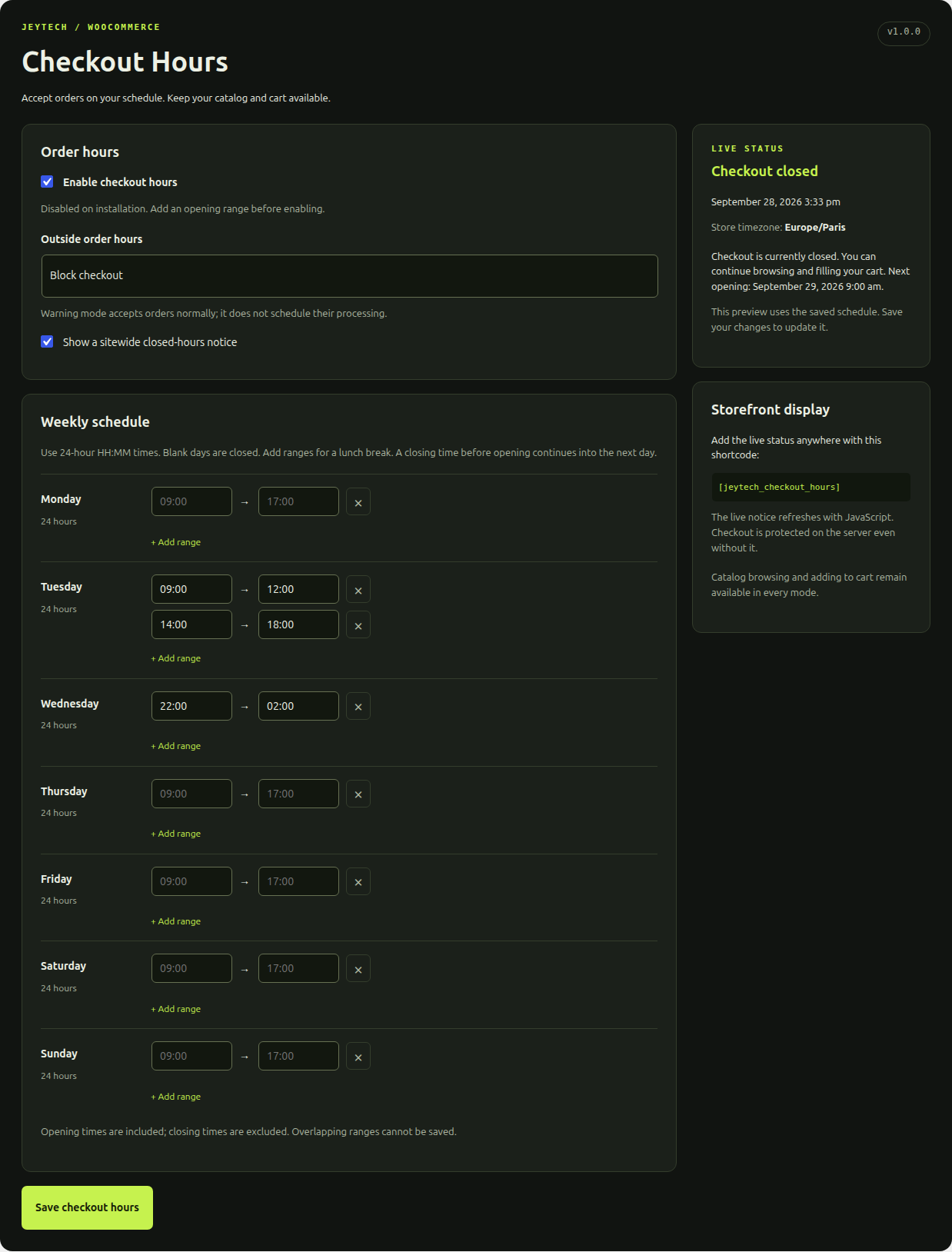
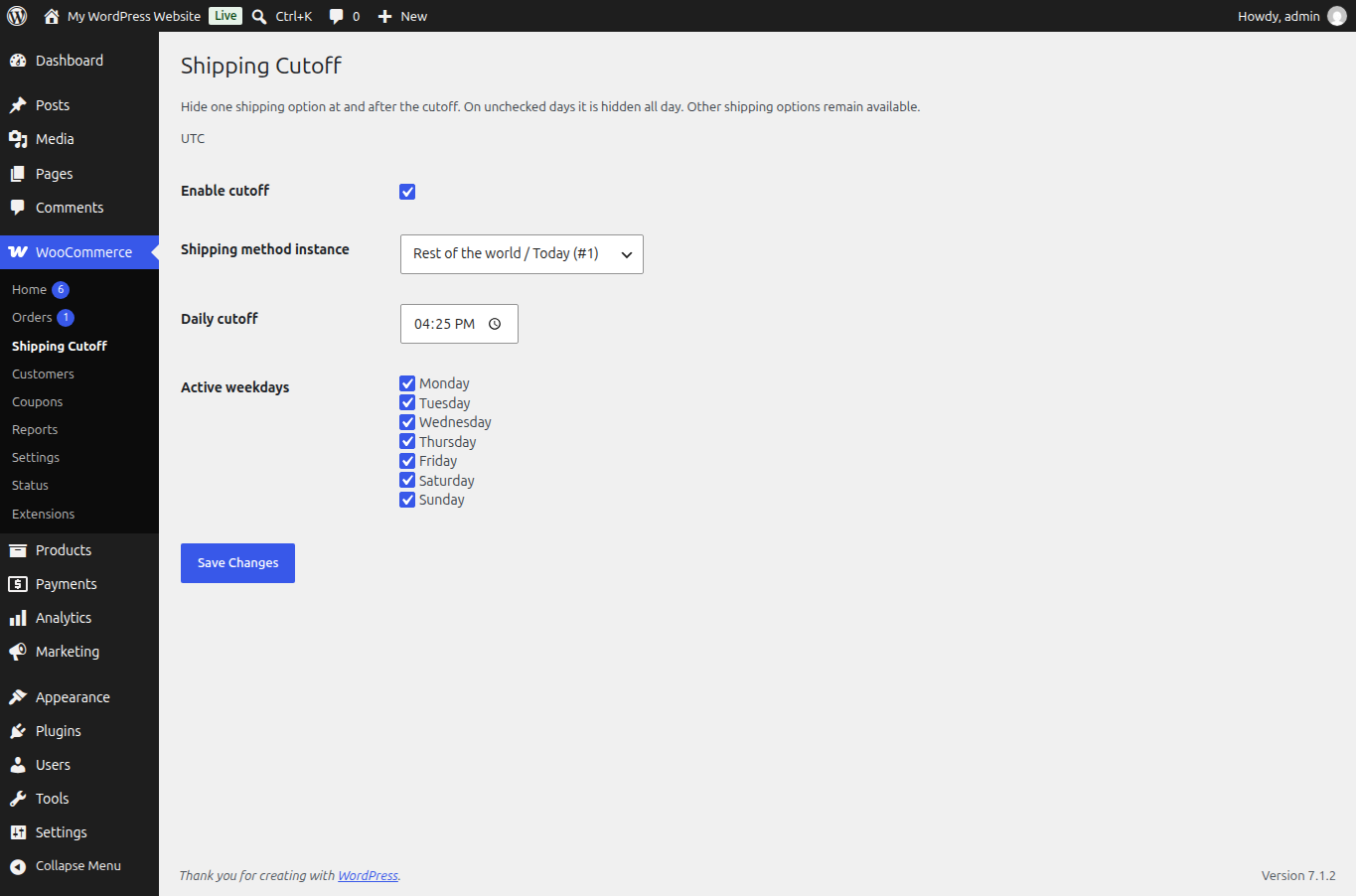
These captures illustrate the controls. The shipping capture uses a different cutoff and UTC; apply your own timezone, time and weekdays.
4. Check classic checkout and Checkout Blocks
Use a test store and repeat the applicable cases in classic Cart/Checkout and Cart/Checkout Blocks. You do not need a real payment to check the refusal or available shipping choices.
| Check | Expected behaviour |
|---|---|
| Checkout Hours in block mode, just before and at closure. | New orders are allowed inside the range and refused at closure. |
| Checkout Hours in warning mode, outside hours. | Warning shown; orders still allowed. |
| Shipping Cutoff, recalculate shipping before and at cutoff. | The targeted instance is available only before cutoff if otherwise eligible. |
| Shipping Cutoff on an unchecked weekday. | Targeted instance hidden all day. |
| Checkout opened before a boundary, submitted after it. | Server checks refuse a closed checkout or an expired shipping selection. |
| No other shipping method qualifies. | Shipping Cutoff supplies no replacement method. |
An idle page is not a live shipping countdown. Recalculate or interact with checkout to refresh the shipping choices. Test the store’s actual theme and any checkout customizations.
Expected result: both checkout layouts respect the intended rule at the boundary, including a page opened earlier.
Continue with the matching setup
Use the Checkout Hours tutorial for weekly hours and optional Pro dates or method schedules. Use the Shipping Cutoff tutorial for selecting an express instance, active days and an alternative.
Product pages: Checkout Hours Free, Checkout Hours Pro and Shipping Cutoff Free.
