

Set a WooCommerce shipping cutoff time at 14:00
Hide one express shipping option from 14:00, choose active weekdays and check the alternative in classic checkout and Checkout Blocks.
Set a WooCommerce shipping cutoff time of 14:00 with JeyTech Shipping Cutoff Free. This tutorial selects one express shipping method instance, hides it at the cutoff and on inactive weekdays, and checks that another method remains available in the cart and checkout.
The plugin controls whether an option is offered. It does not promise a dispatch or delivery date, display a countdown or provide a holiday calendar.
What you need
- WordPress 6.6+, WooCommerce 9.6+, PHP 7.4+, and permission to manage WooCommerce.
- JeyTech Shipping Cutoff Free on WordPress.org, installed and active. The rule is disabled by default.
- A test store, a physical product and a delivery address covered by your shipping zone.
- An express method and an alternative method that WooCommerce already offers for that address.
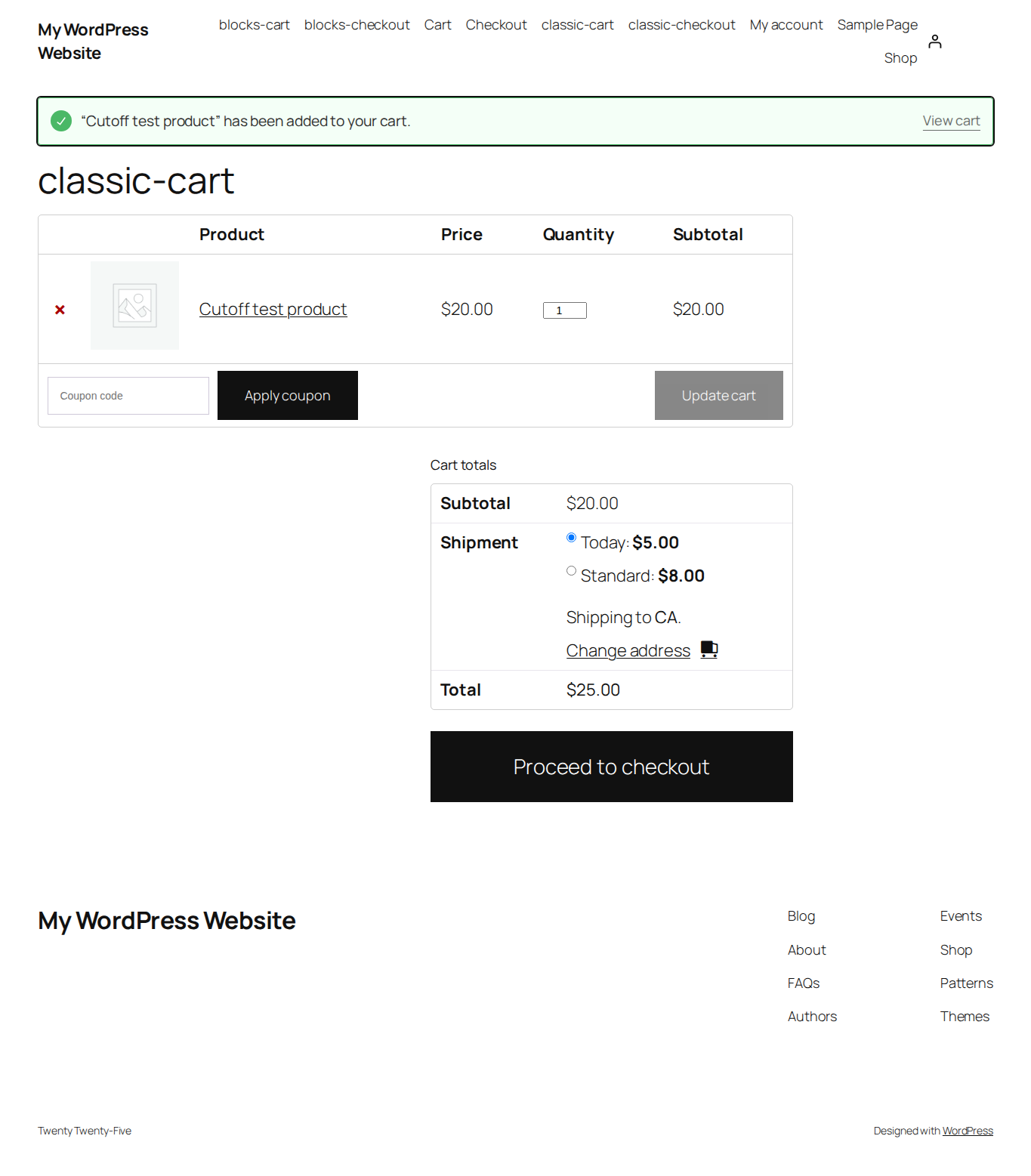
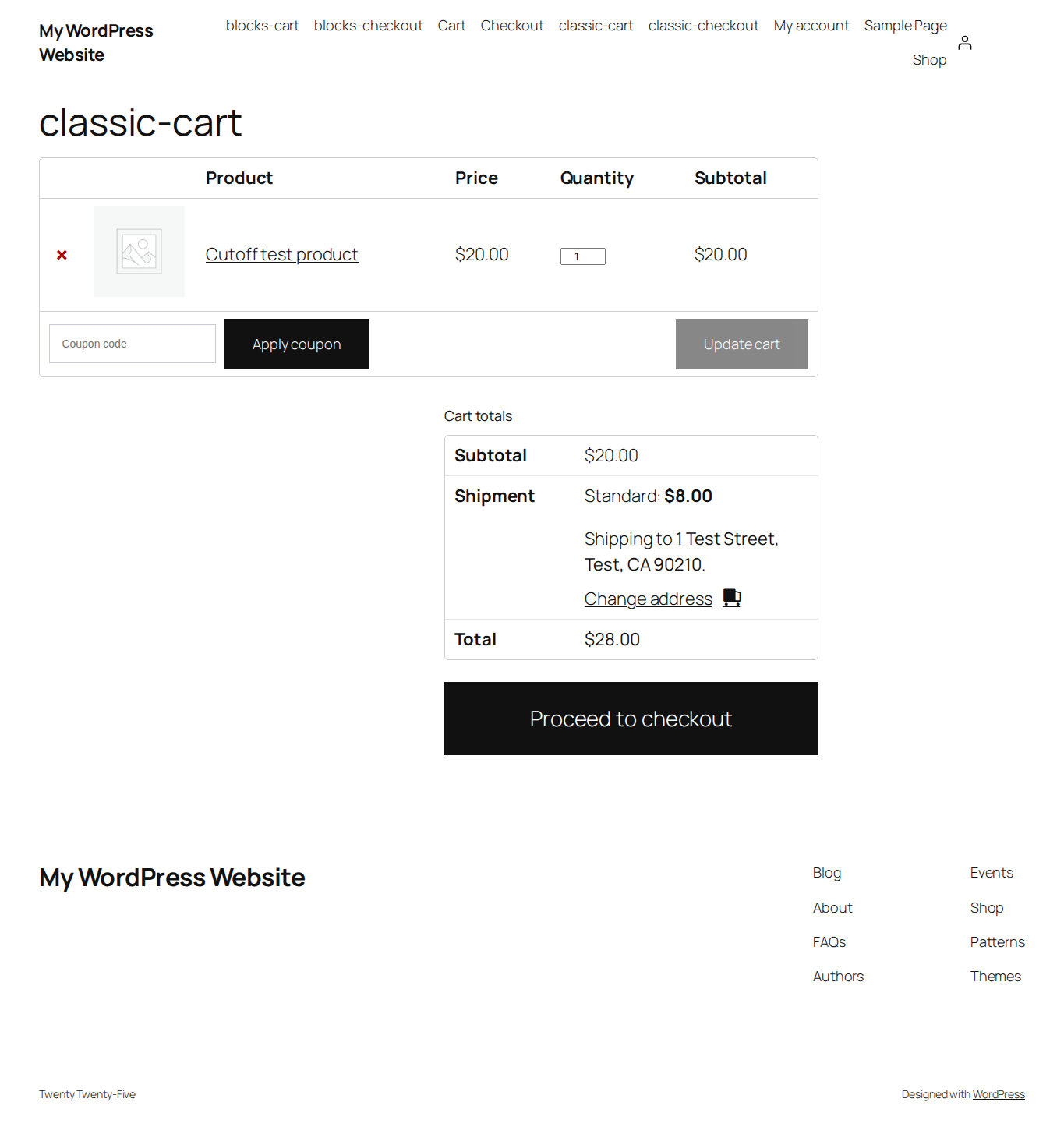
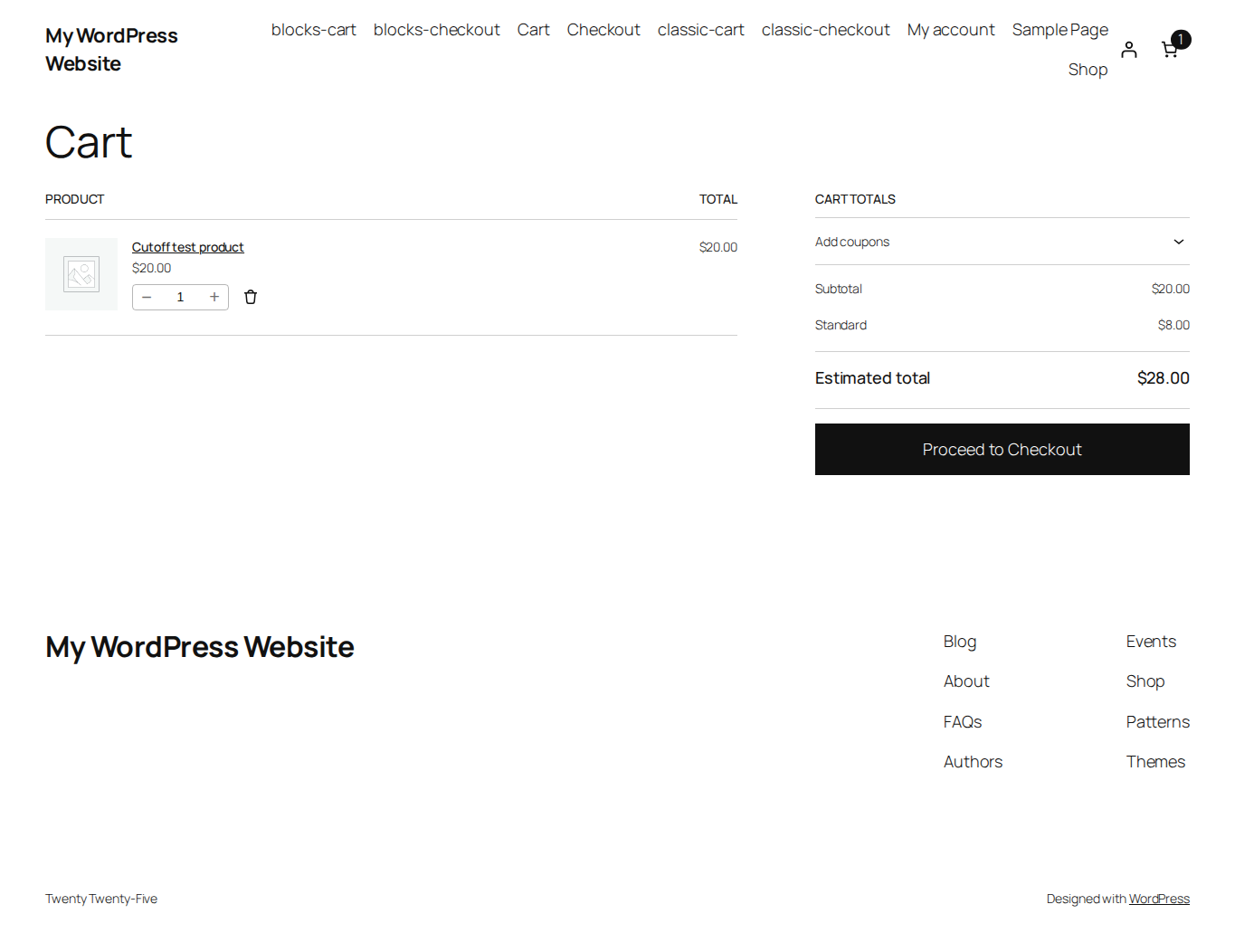
These steps use Free 1.0.0. The screenshots are existing demonstrations, not captures of this exact 14:00 example. Their targeted option is named Today; treat it as the express option in the example below.
1. Prepare the express instance and an alternative
Open WooCommerce → Settings → Shipping → Shipping zones, then edit the zone covering your test address. Configure and enable two shipping methods, for example two flat-rate instances titled Express and Standard.
An instance is one method added to one zone. Two flat-rate methods can have different instance numbers. Shipping Cutoff targets one instance, not every method of that type or every option named Express.
Check the cart before enabling the rule. Enter the test address and confirm that both methods are offered under WooCommerce’s own conditions.
Expected result: Express and Standard are available for the same physical cart and address. Standard provides an alternative after the cutoff.
2. Check the store timezone
In WordPress, open Settings → General → Timezone and verify the timezone used by the store, for example Europe/Paris. Save any intended change. Open WooCommerce → Shipping Cutoff and check the timezone printed above the form.
The rule uses WordPress time, not the customer’s browser timezone. A named timezone follows its daylight-saving changes; a fixed UTC offset remains fixed.
Expected result: the plugin displays the intended timezone. In this example, 14:00 means 14:00 in that timezone.
3. Enable the 14:00 weekday rule
On WooCommerce → Shipping Cutoff, set:
| Field | Example value |
|---|---|
| Shipping method instance | Your zone / Express (#instance number). |
| Daily cutoff | 14:00 (2:00 PM if your browser uses a 12-hour input). |
| Active weekdays | Monday to Friday checked; Saturday and Sunday unchecked. |
| Enable cutoff | Checked. |
Click Save Changes. Check the saved instance number and time again.
Unchecked days hide Express all day, including before 14:00. On checked days it is allowed before the cutoff if WooCommerce otherwise offers it, and hidden from 14:00:00 onward. A new calendar day starts at midnight; availability then depends on that day’s checkbox.
Expected result: one instance has one daily cutoff, with weekends inactive. Standard remains governed by its normal WooCommerce configuration.
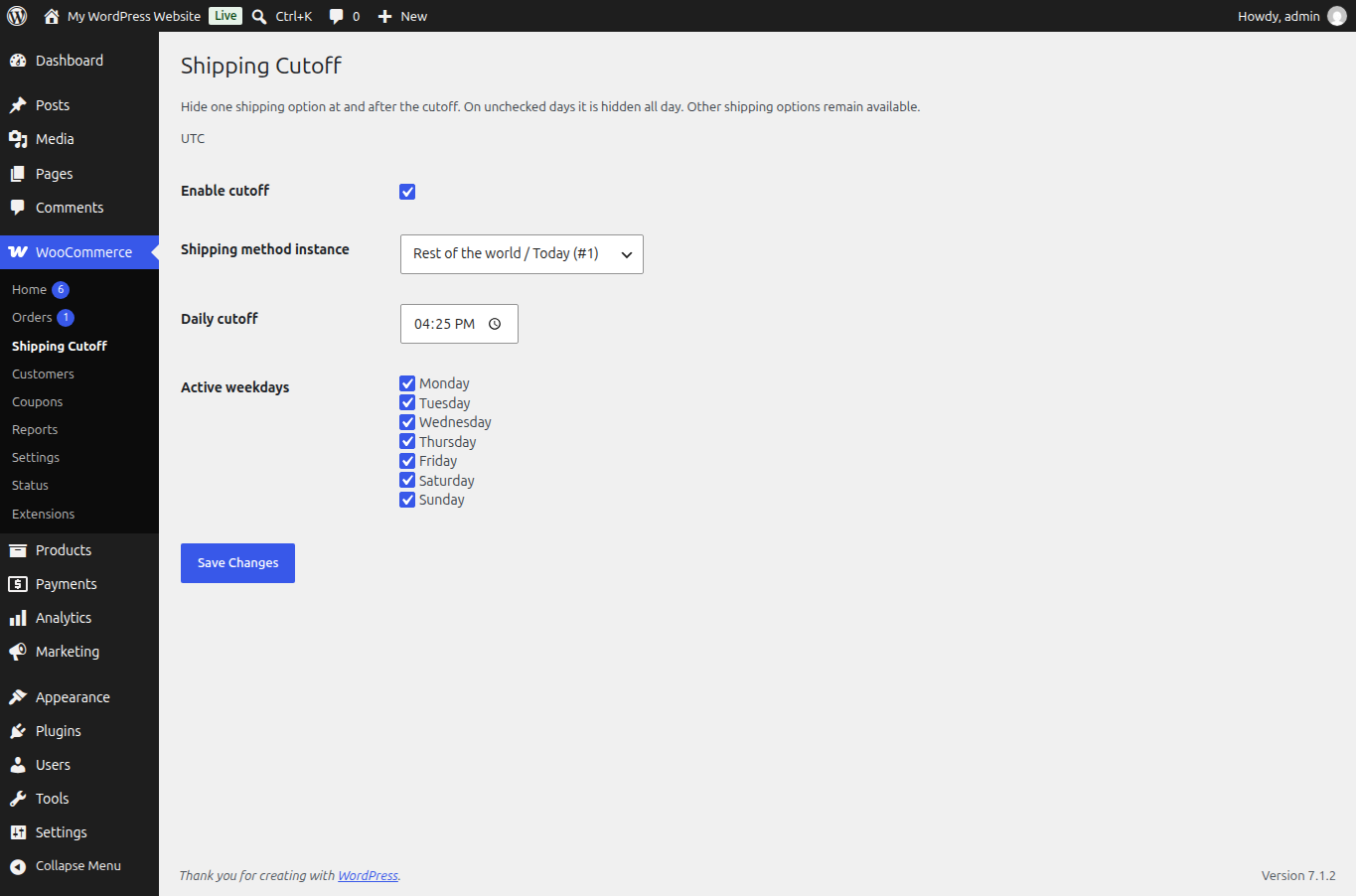
This capture shows UTC, a different time and all days checked. Use the values in the table for the 14:00 weekday example.
4. Check the cart before and after the cutoff
On an active weekday, use the same product and address before 14:00. Then recalculate or reload the cart at or after 14:00.
| Store time | Express | Standard |
|---|---|---|
| Monday, 13:59 | Offered if otherwise eligible. | Offered if otherwise eligible. |
| Monday, 14:00 or later | Hidden. | Offered if otherwise eligible. |
| Saturday, any time | Hidden. | Offered if otherwise eligible. |
To test sooner, temporarily save a cutoff a few minutes ahead of the current store time on your test store, observe both sides of it, then restore 14:00 and the intended weekdays.
Expected result: the selected instance disappears when shipping is recalculated after the boundary. The alternative stays available if it still meets its own conditions.
5. Check classic checkout and Checkout Blocks
Repeat the test in the cart and checkout layout your store uses. For classic Cart/Checkout, check the shipping choices after recalculation. For Cart and Checkout Blocks, enter the same address and check the refreshed choices. Both use server-side shipping calculation.
Include a checkout opened before the cutoff with Express selected, then continued after the cutoff. The expired selection must be reviewed; if it is submitted, the plugin guards against creating an order with that expired shipping instance. Review the available method and total before continuing on your test store.
A page left idle is not a live countdown. Check after a shipping recalculation or checkout interaction. If no alternative qualifies, WooCommerce can have no available shipping method for that address; this plugin does not create one.
Expected result: classic checkout and Checkout Blocks respect the same cutoff. An old Express selection cannot bypass the closed rule.
If the result is unexpected
| Situation | Check |
|---|---|
| Express is hidden before 14:00 | The current weekday is checked and the store timezone is correct. |
| Express stays visible after recalculation | Enable cutoff is checked and the selected zone/instance matches the cart’s method. |
| No alternative appears | Zone matching and the alternative’s own availability conditions. |
| Saved instance is unavailable | Enable it again or select another enabled instance. To retire the rule, uncheck Enable cutoff and choose the empty selection before saving. |
| A save is rejected | Use a valid time and an available instance. Invalid saves preserve previous settings. |
Existing orders, payments and stock are unchanged. Existing pay-for-order routes are outside this guard. See the Shipping Cutoff product page for the free plugin, or the Checkout Hours tutorial if you also need a separate schedule for accepting orders.
Read next: Compare checkout hours and shipping cutoff.
