

Add GPSR WooCommerce manufacturer data by brand
Enter manufacturer contacts once per brand, inherit them on products, handle overrides and warnings, then review missing fields in the free audit.
Add GPSR WooCommerce manufacturer data once per brand with JeyTech Safety Data by Brand Free, then check what each product inherits. This tutorial covers manufacturer contacts, an EU contact, a product override, safety warnings and the free audit, with product-page checks for classic and block themes.
The plugin helps fill and display GPSR fields. This tutorial is not legal compliance advice, and neither filled fields nor a “Complete” audit result guarantee compliance. Have the person responsible for the products approve the information and decide which details apply.
What you need
- WordPress 6.6+ for WooCommerce 9.6+, PHP 7.4+, and permission to edit products, manage brands and manage WooCommerce. The plugin itself declares WordPress 6.5+, but WooCommerce 9.6 requires 6.6.
- JeyTech Safety Data by Brand Free on WordPress.org, installed and active. These steps use 1.0.0 and the standard WooCommerce product editor.
- One brand and two test products, plus manufacturer details and any applicable EU contact and warnings approved for publication.
The screenshots contain demonstration data. Do not copy their example contacts into your real catalog.
1. Fill the brand’s manufacturer fields
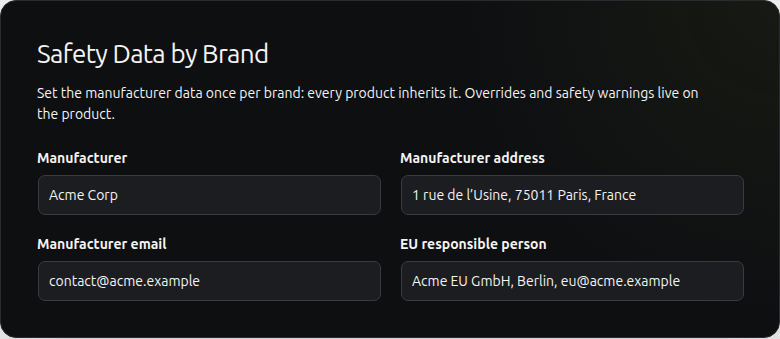
Open Products → Brands. Create a brand or edit an existing one. In Safety Data by Brand, fill the fields with the approved information:
| Field | What to enter |
|---|---|
| Manufacturer | The manufacturer’s name. |
| Manufacturer address | Its postal address. |
| Manufacturer email | Its contact email address. |
| EU responsible person | The approved name and contact details for the EU contact, where applicable. |
EU responsible person is one text field, not separate name, address and email controls. The plugin does not check the contact’s role or determine when it is required. Save the brand using the brand form’s add or update action.
Expected result: reopening the brand shows the saved manufacturer data. The same brand values can be inherited by its products.
2. Assign the brand and check inheritance
Edit each test product, assign the brand using WooCommerce’s Brands selection, and open Product data → GPSR. Leave the four manufacturer/contact fields empty on the first product, then update it.
An empty product field inherits the matching brand field. Inheritance works field by field: you do not have to copy all four values onto the product. Variations use their parent product’s data.
Use one brand for this first test. If a product has several brands, the plugin resolves one brand, the first returned by WordPress’s term query, rather than combining their data. Without a brand, enter the values directly on the product.
Expected result: the first product’s public safety section uses the saved brand information while its product override inputs remain empty.
3. Add a product override and warnings
On the second product, open Product data → GPSR. Enter a different approved Manufacturer email, leaving the other three contact fields empty. Fill Safety warnings with the instructions supplied for this product, then update it.
The product email replaces the brand email for this product only. Other empty fields continue to inherit. Clear the email override and save if you want to restore brand inheritance. An empty override does not suppress a nonempty brand value.
Warnings belong to the product, not the brand. Enter the product’s actual approved wording; the plugin does not generate or assess it. For variable products, use the parent product’s GPSR tab.
Expected result: the second product shows its own email and warnings, with the other contacts inherited. The first product remains unchanged.
4. Verify the classic and block product pages
Open WooCommerce → GPSR safety. Confirm that Enable → Show the safety section on product pages is checked, then save if you changed it. Display is enabled by default.
Open both products as a visitor:
| Layout | What to check |
|---|---|
| Classic product page | The Product Safety tab shows the resolved contacts and any warnings. |
| Block theme product page | The Product Safety section is appended to the product content. Check that your template renders that content. |
Compare the first product’s inherited email with the second product’s override. Check a phone view and, for a variable product, check the parent information after selecting a variation. A product with no data has no safety section.
Cart/Checkout Blocks compatibility does not mean the manufacturer section appears at checkout. This display belongs on product pages; verify the actual product template used by the store.
Expected result: each page displays the intended values and warnings in its safety section.
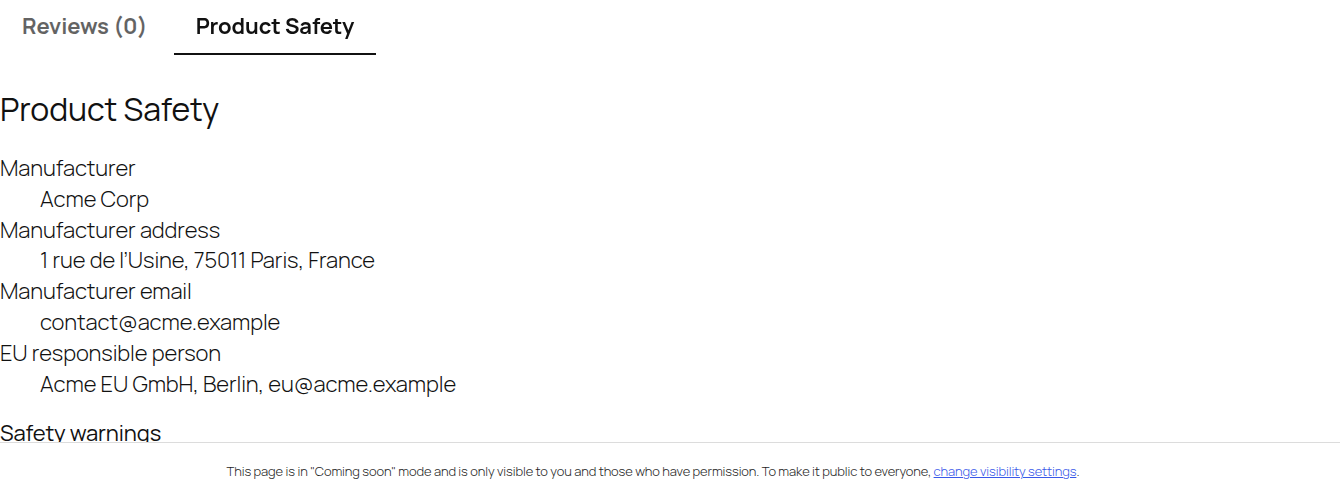
This existing capture stops at the Safety warnings heading; it does not show the full warning text or the email override used in this tutorial.
5. Review missing fields in the free audit
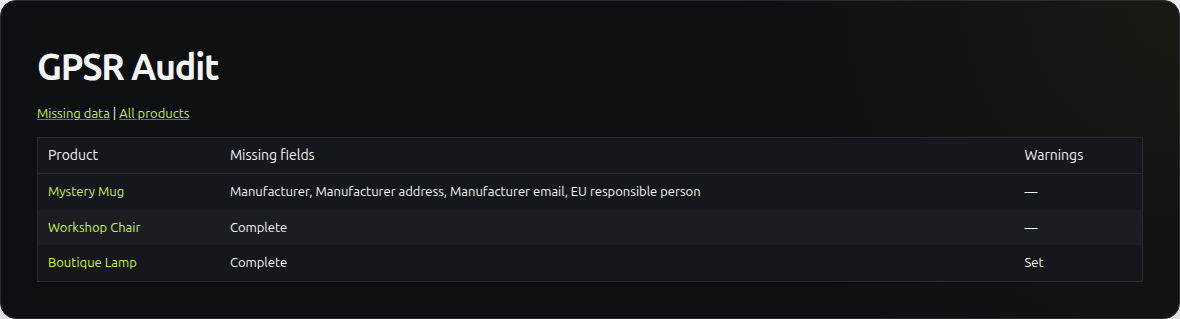
Open WooCommerce → GPSR audit. Missing data shows listed products with empty resolved contact fields; All products also shows those marked Complete. Click a product name to edit it, fill the relevant product or brand data, then revisit the audit.
The free audit lists up to 1,000 published parent products. It checks all four contact fields for emptiness, including EU responsible person, without deciding whether a field is legally required for that product. It can therefore flag an intentionally empty field. Do not invent a contact merely to remove a flag.
Warnings indicates whether text is set. It is not part of the four-field completeness check. Complete means those four resolved fields are nonempty; it does not verify accuracy, warnings, documents or legal compliance. The free screen provides no CSV export.
Expected result: you have a list of empty fields to review with the catalog owner, with the audit’s scope and limits understood.
If data is missing or unexpected
| Situation | Check |
|---|---|
| No safety section | Display enabled, at least one nonempty value and a template that renders the relevant tab or product content. |
| Wrong manufacturer contact | Assigned brand and nonempty product overrides; avoid several brands for the initial test. |
| Email disappears after saving | Use a valid email address; the plugin sanitizes the field. |
| A variation needs different contacts | Free uses the parent data; review the parent product and its brand. |
| Audit still flags an EU contact | It checks emptiness, not legal applicability. Review the requirement with the catalog owner. |
See the free product page for the manufacturer fields. If you later need safety PDFs or CSV import/export, Safety Data by Brand Pro is optional. Its installation guide and PDF tutorial cover those additional workflows.

